
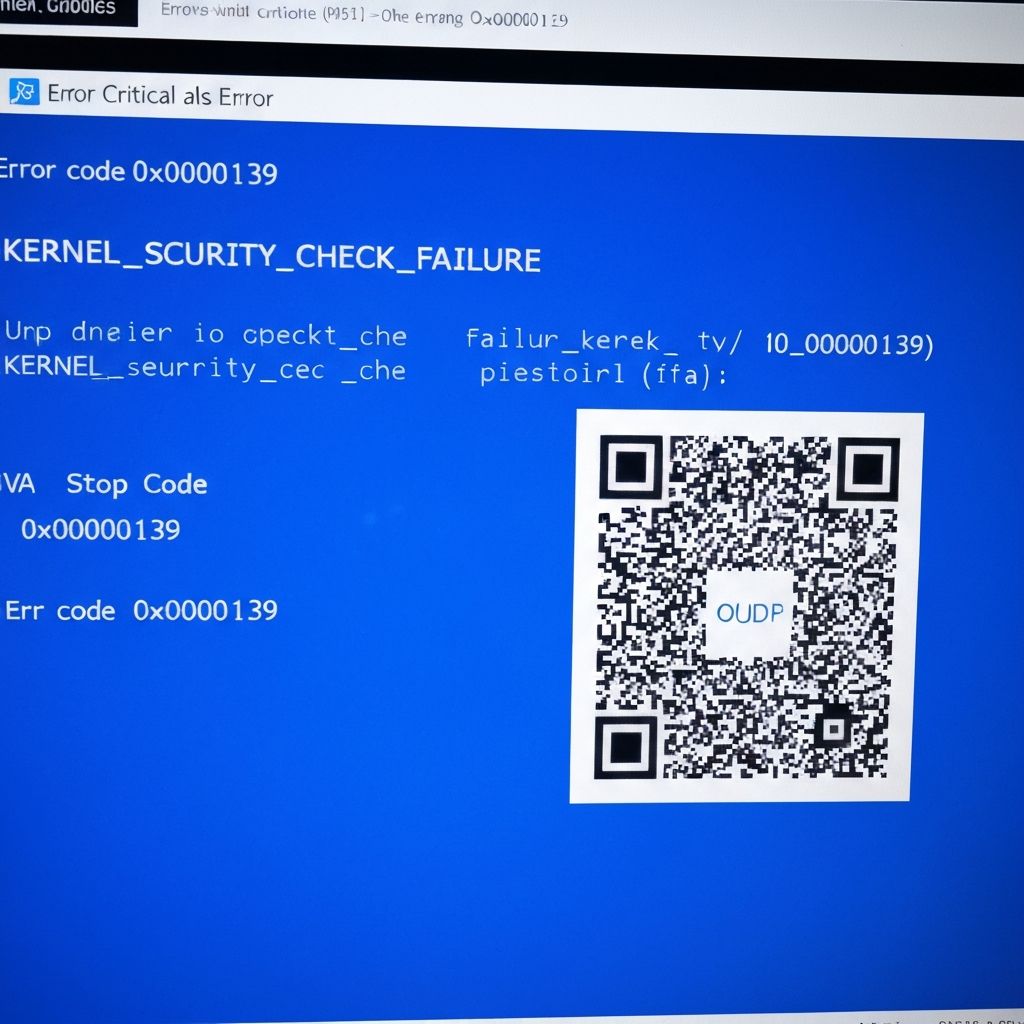
Windows Kernel Security Check Failure
Fix Windows BSOD kernel security check failure. Memory corruption, driver conflicts, and system file errors causing critical security check crashes.
What is Kernel Security Check Failure?
KERNEL_SECURITY_CHECK_FAILURE (stop code 0x00000139) is a critical Windows blue screen error indicating the kernel detected a security violation or corruption in protected memory areas. This is a serious system integrity issue.
When does it occur?
This error appears when:
- During system boot or startup
- While running games or intensive applications
- After installing new software or drivers
- Following Windows updates
- When antivirus performs deep scans
Common causes
- Corrupted system files or Windows installation
- Faulty RAM or memory errors
- Incompatible or malicious drivers
- Disk errors or bad sectors
- Overclocked hardware instability
- Malware or rootkit infection
- Failing hard drive or SSD
Step-by-step fixes
- Boot into Safe Mode - Hold Shift while clicking Restart > Troubleshoot > Advanced > Startup Settings > Safe Mode
- Run SFC and DISM - CMD as admin > "sfc /scannow" then "DISM /Online /Cleanup-Image /RestoreHealth"
- Check disk for errors - CMD as admin > "chkdsk C: /f /r" and restart
- Run full antivirus scan - Use Windows Defender or your antivirus in Safe Mode
- Update all drivers - Device Manager > Update each driver, especially graphics and chipset
- Test RAM with MemTest86 - Create bootable USB and run memory diagnostics
- Remove recent software - Uninstall any programs installed before error started
- Reset overclocking - Return CPU, GPU, and RAM to default speeds in BIOS
If it still doesn't work
Use System Restore to revert to a point before the error started (Settings > System > Recovery > Open System Restore). If no restore points exist, consider performing a Windows Reset while keeping your files (Settings > System > Recovery > Reset this PC).
Check your hard drive health using CrystalDiskInfo. If the drive shows warnings or errors, backup your data immediately and consider drive replacement. Run the Windows Memory Diagnostic tool multiple times to thoroughly test for RAM issues.
Related errors
Fix Windows 11 BSOD memory management error. RAM issues, driver conflicts, and memory corruption causing blue screen crashes with MEMORY_MANAGEMENT stop code.
Resolve Windows 11 BSOD driver power state failure. Sleep mode crashes, driver conflicts, and power management errors causing blue screen on wake.