
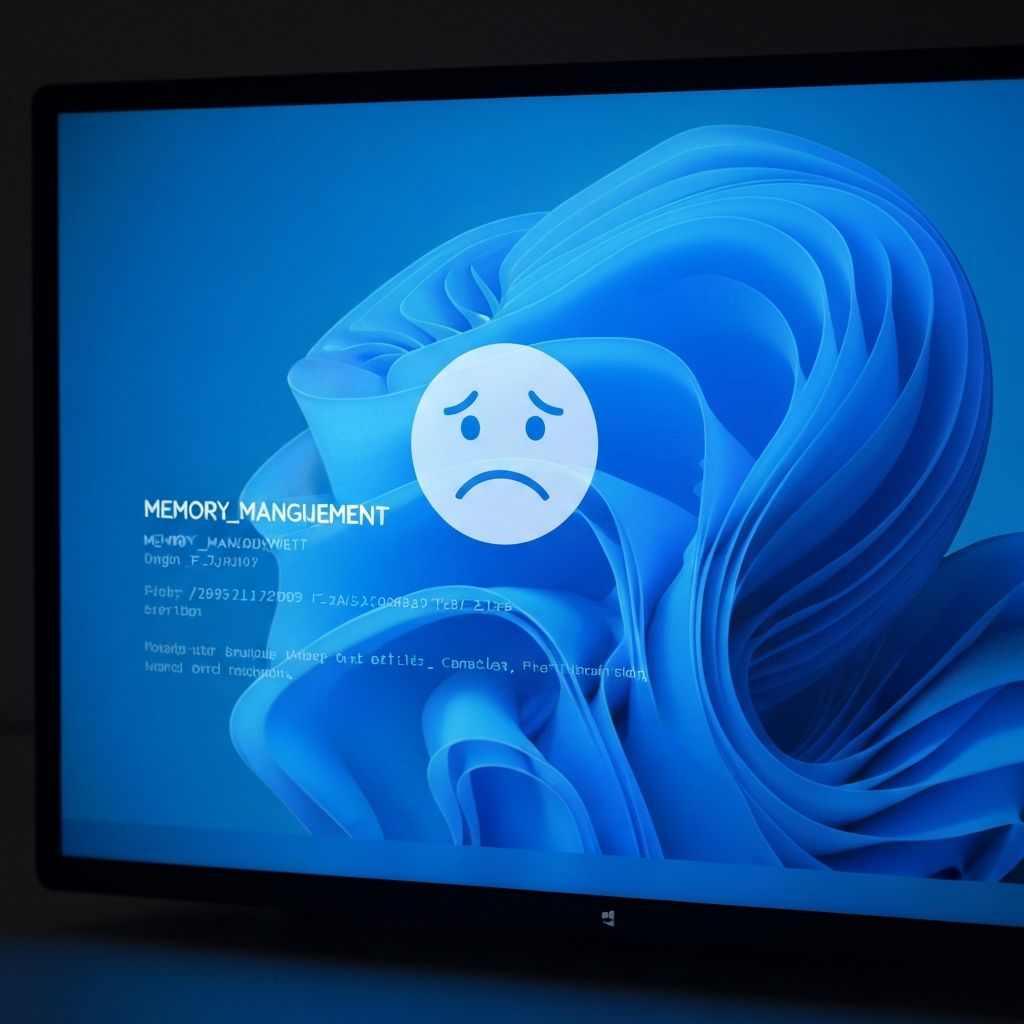
Windows 11 Blue Screen Memory Management
Fix Windows 11 BSOD memory management error. RAM issues, driver conflicts, and memory corruption causing blue screen crashes with MEMORY_MANAGEMENT stop code.
What is Memory Management BSOD?
MEMORY_MANAGEMENT is a Windows 11 blue screen error (stop code 0x0000001A) indicating the operating system detected a critical memory management issue. This typically involves RAM, memory drivers, or system file corruption.
When does it occur?
This error appears when:
- Running memory-intensive applications
- During gaming or video editing
- After installing new RAM
- Following Windows updates
- When system memory becomes corrupted
Common causes
- Faulty or incompatible RAM modules
- Outdated or corrupted device drivers
- Overclocked RAM running unstable
- Corrupted Windows system files
- Incompatible antivirus software
- Memory leak from faulty software
- Failing hardware components
Step-by-step fixes
- Run Windows Memory Diagnostic - Search "Windows Memory Diagnostic" > Restart now and check for problems
- Update all drivers - Device Manager > Right-click each device > Update driver
- Run SFC scan - CMD as admin > Type "sfc /scannow" and press Enter
- Run DISM - CMD as admin > Type "DISM /Online /Cleanup-Image /RestoreHealth"
- Check for Windows updates - Settings > Windows Update > Check for updates
- Remove overclocking - Reset RAM to default speeds in BIOS
- Reseat RAM modules - Power off PC, remove and reinstall RAM sticks firmly
- Test RAM individually - Use one RAM stick at a time to identify faulty module
If it still doesn't work
Use MemTest86 for comprehensive RAM testing. Create a bootable USB with MemTest86 and run it for at least 4 full passes. If errors are detected, the RAM is faulty and needs replacement.
Check Event Viewer for specific error details (eventvwr.msc > Windows Logs > System). Look for error codes preceding the crash to identify which driver or component is causing the issue. Consider performing a clean Windows installation if system file corruption is severe.
Related errors
Resolve Windows 11 BSOD driver power state failure. Sleep mode crashes, driver conflicts, and power management errors causing blue screen on wake.
Fix Windows BSOD kernel security check failure. Memory corruption, driver conflicts, and system file errors causing critical security check crashes.