
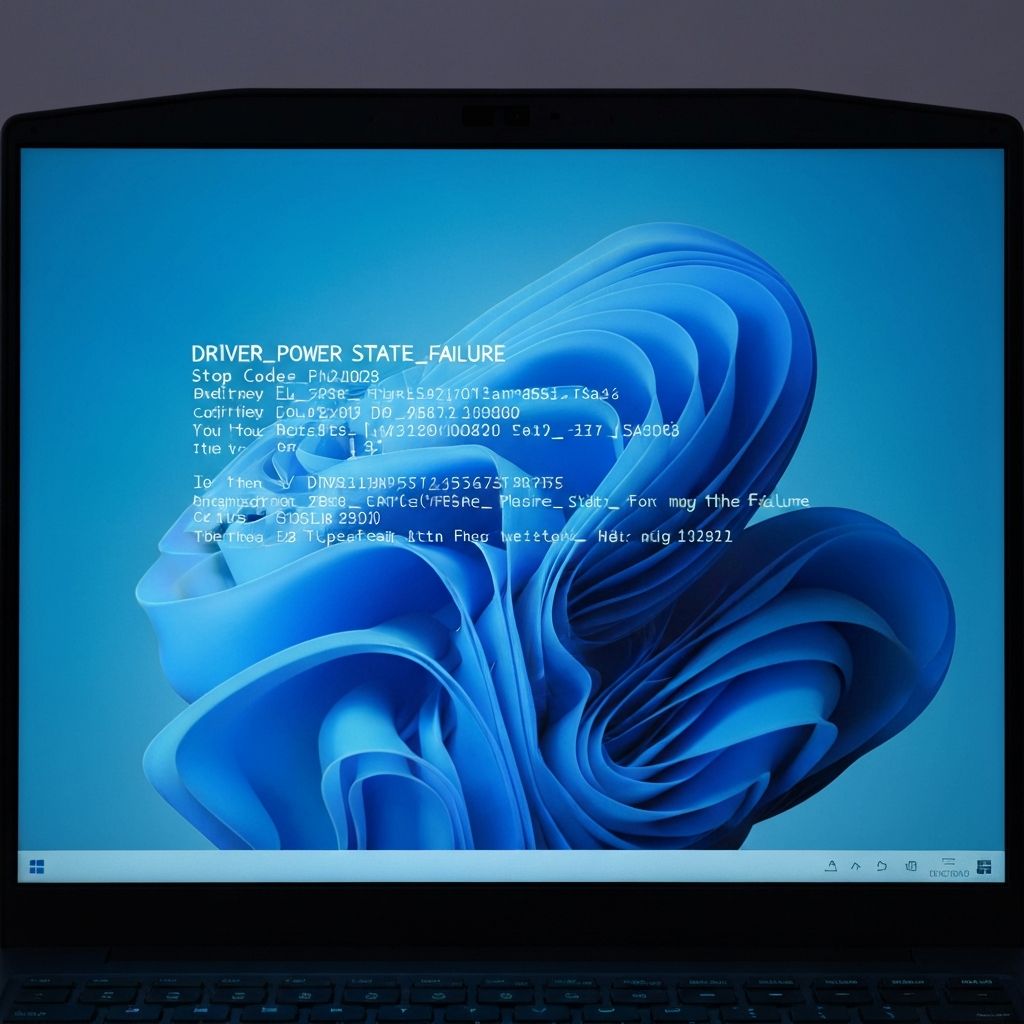
Windows 11 Driver Power State Failure
Resolve Windows 11 BSOD driver power state failure. Sleep mode crashes, driver conflicts, and power management errors causing blue screen on wake.
What is Driver Power State Failure?
DRIVER_POWER_STATE_FAILURE (stop code 0x0000009F) is a Windows 11 blue screen error that occurs when a driver fails to transition properly between power states, typically when entering or exiting sleep mode.
When does it occur?
This error appears when:
- Computer wakes from sleep or hibernate
- Entering sleep mode or shutting down
- After installing new drivers or Windows updates
- When USB devices are connected during sleep
- Using laptops on battery power
Common causes
- Outdated or incompatible device drivers
- USB device driver power management issues
- Graphics driver power state conflicts
- Network adapter power settings
- Incompatible BIOS/UEFI firmware
- Corrupted system power settings
- Faulty external devices
Step-by-step fixes
- Update all drivers - Device Manager > Right-click each device > Update driver (especially graphics, chipset, USB)
- Disable USB selective suspend - Control Panel > Power Options > Change plan settings > Change advanced power settings > USB > Disable selective suspend
- Update graphics drivers - Download latest from NVIDIA, AMD, or Intel website
- Disable fast startup - Control Panel > Power Options > Choose what power buttons do > Disable fast startup
- Update BIOS/UEFI - Visit motherboard manufacturer website for latest firmware
- Change power plan - Use Balanced or High Performance instead of Power Saver
- Disable driver power management - Device Manager > Network adapters > Properties > Power Management > Uncheck "Allow computer to turn off this device"
- Run Power Troubleshooter - Settings > System > Troubleshoot > Other troubleshooters > Power
If it still doesn't work
Check Event Viewer for the specific driver causing the issue (eventvwr.msc > Windows Logs > System). Look for warnings before the crash to identify problematic devices. Disconnect all unnecessary USB devices and external hardware to isolate the cause.
Consider disabling sleep mode entirely if you need immediate stability (Control Panel > Power Options > Change when the computer sleeps > Never). While not ideal, this prevents the power state transition that triggers the error while you troubleshoot further.
Related errors
Fix Windows 11 BSOD memory management error. RAM issues, driver conflicts, and memory corruption causing blue screen crashes with MEMORY_MANAGEMENT stop code.
Fix Windows BSOD kernel security check failure. Memory corruption, driver conflicts, and system file errors causing critical security check crashes.