
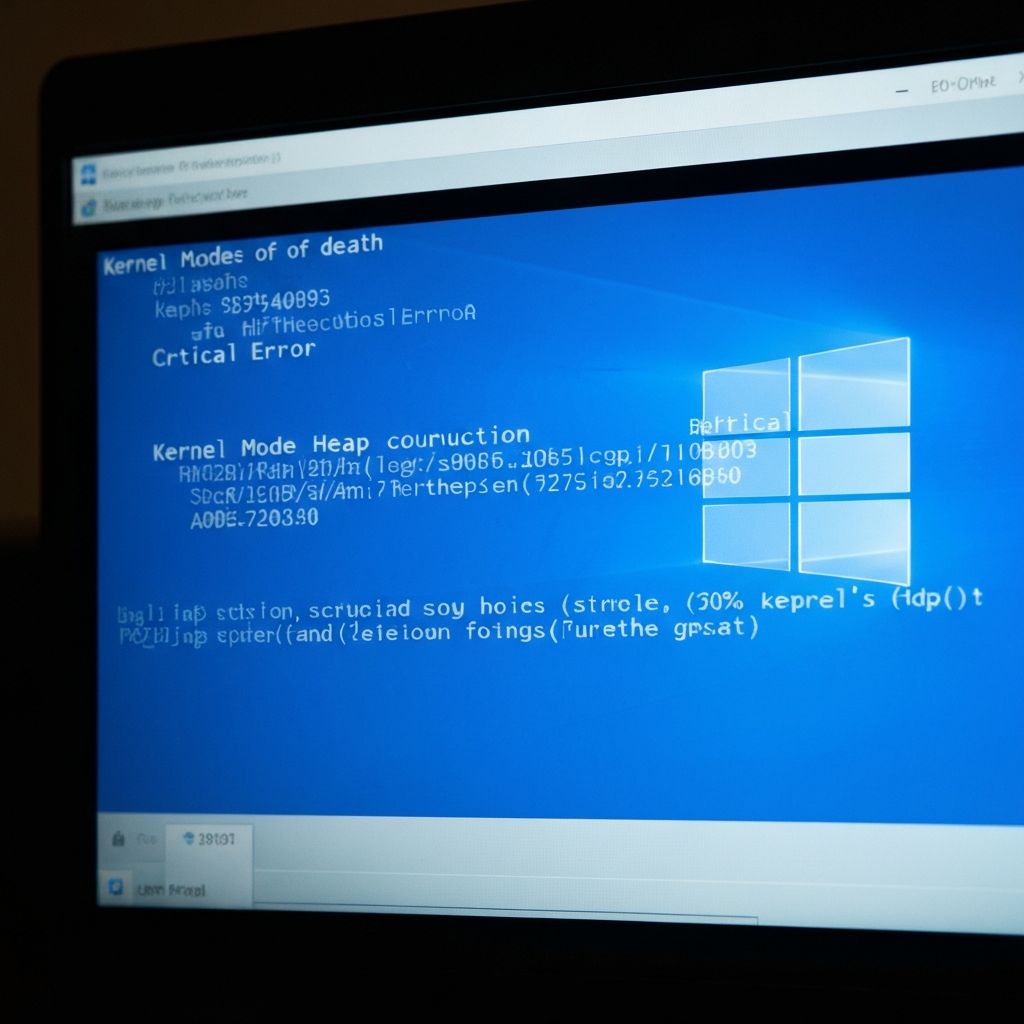
Fix Windows KERNEL MODE HEAP CORRUPTION BSOD Stop Code
Resolve Windows KERNEL_MODE_HEAP_CORRUPTION blue screen error. Fix memory corruption, driver heap violations, and pool corruption causing kernel mode heap BSOD in Windows 10/11.
What is KERNEL_MODE_HEAP_CORRUPTION?
KERNEL_MODE_HEAP_CORRUPTION is a critical Blue Screen of Death error indicating a driver or kernel component corrupted Windows kernel memory heap. This stop code (0x0000013A) occurs when heap manager detects buffer overruns, use-after-free bugs, or invalid memory writes corrupting kernel pool allocations, typically caused by buggy drivers or failing RAM.
Understanding kernel heap
Windows kernel heap structure:
- Paged Pool - Swappable kernel memory
- NonPaged Pool - Always resident kernel memory
- Special Pool - Debug allocations for driver verification
- Heap allocations tracked by heap manager
- Corruption detected through guard pages and metadata checks
Error triggers when heap integrity checks fail, indicating memory safety violation.
Common causes
- Faulty RAM hardware causing random memory corruption
- Driver buffer overflow vulnerabilities
- Use-after-free bugs in third-party drivers
- Antivirus kernel drivers with memory leaks
- Graphics drivers with heap management bugs
- Storage controller drivers corrupting buffers
- Overclocking CPU/RAM causing memory instability
Step-by-step fixes
- Run Memory Diagnostic - Windows Memory Diagnostic overnight test
- Test RAM with MemTest86 - Bootable USB, run 8+ passes
- Update all drivers - Focus on chipset, storage, network drivers
- Disable overclocking - Reset BIOS to default settings
- Run Driver Verifier - verifier.exe with special pool enabled
- Update BIOS firmware - Memory controller fixes in BIOS updates
- Check crash dumps - Use WinDbg to identify faulting driver
- Run SFC and DISM - Repair corrupted system files
Using Driver Verifier for heap corruption
Special Pool verification catches heap bugs:
- Run Command Prompt as administrator
- Type: verifier /flags 0x1 /all
- Restart computer
- System will BSOD if driver corrupts heap
- Boot Safe Mode if crash during startup
- Run: verifier /query to see which driver failed
- Update or remove that specific driver
- Run: verifier /reset when done testing
Warning: Special Pool verification will intentionally crash to catch bugs. Have recovery media ready.
Memory testing methodology
Comprehensive RAM testing:
MemTest86 procedure:
- Create bootable USB with MemTest86
- Run minimum 8 full passes (8-12 hours)
- Even single error indicates faulty RAM
- Test sticks individually if multiple installed
- If errors found, replace RAM module
Windows Memory Diagnostic:
- Run from Advanced startup options
- Choose "Extended" test (not Basic)
- Takes 20+ minutes per pass
- Less thorough than MemTest86 but easier
Analyzing crash dumps for heap corruption
Using WinDbg to find culprit:
- Install WinDbg from Windows SDK
- Open .dmp file from C:\\Windows\\Minidump
- Run: !analyze -v
- Look for "FAULTING_MODULE" or "PROCESS_NAME"
- Run: !pool to see pool allocation state
- Run: !verifier to see driver verifier information
- Identify driver making bad allocations
Common heap corruption patterns:
- Double-free bugs (freeing same memory twice)
- Buffer overruns (writing beyond allocation)
- Use-after-free (accessing freed memory)
- Metadata corruption (heap headers damaged)
Graphics driver heap issues
GPU drivers frequently corrupt heap:
- Uninstall drivers completely with DDU in Safe Mode
- Install only driver package, not GeForce Experience/AMD Software
- Try older stable driver version (not latest bleeding edge)
- Disable hardware-accelerated GPU scheduling
- Underclock GPU memory if overclocked
- Test with integrated graphics if available
Storage driver corruption
NVMe and SATA drivers can cause heap corruption:
- Update motherboard chipset drivers first (includes storage controller)
- Update NVMe firmware if using NVMe SSD
- Check for vendor-specific storage driver updates (Samsung, Intel, WD)
- Disable write caching on drives - Device Manager > Drive Properties
- Run: chkdsk /f /r to fix file system errors
- Test with SATA mode changed in BIOS (AHCI vs RAID)
Antivirus kernel driver issues
Real-time protection can corrupt heap:
- Temporarily uninstall antivirus completely (not just disable)
- Test if crashes stop without antivirus
- Windows Defender rarely causes heap corruption
- Third-party AV with known issues: Avast, AVG, McAfee, Norton
- If AV is cause, report to vendor and switch products
- Some AV has compatibility mode for Windows 11 - enable it
Overclocking related corruption
Unstable overclocks corrupt memory:
- Reset BIOS to Load Optimized Defaults
- Disable ALL overclocking (CPU, GPU, RAM)
- Run RAM at JEDEC speeds, not XMP profiles
- Test system stability without OC for 24 hours
- If stable, incrementally increase OC and stress test
- Increase RAM voltage by 0.05V if borderline unstable
Advanced troubleshooting
For persistent heap corruption:
- Check Event Viewer before crash - Critical errors may show pattern
- Run: verifier /flags 0x209BB /all for full verification (very aggressive)
- Test in clean Windows profile - Profile corruption can cause issues
- Update motherboard BIOS - Memory controller bugs fixed in updates
- Check for CPU microcode updates in BIOS
- Test with minimal hardware - Disconnect all USB devices, extra drives
Hardware replacement decision
When to replace hardware:
RAM: Replace if MemTest86 shows any errors
CPU: Replace if BSOD persists after RAM replacement and all drivers updated
Motherboard: Replace if multiple RAM kits tested all show errors (controller issue)
PSU: Consider if system crashes under load (insufficient power corrupts memory)
Virtual machine considerations
If heap corruption in VM:
- Update VMware/Hyper-V/VirtualBox to latest
- Increase allocated RAM to VM
- Disable nested virtualization if enabled
- Update VM guest additions/tools
- Host system may have RAM issues affecting VM
Prevention tips
Minimize heap corruption risks:
- Keep all drivers updated monthly
- Don't overclock in production systems
- Use ECC RAM if possible (workstations/servers)
- Test RAM stability after new installation
- Regular Driver Verifier runs to catch bugs early
- Avoid beta/pre-release drivers
- Monitor system temperatures (overheating causes memory errors)
\\\`
Related errors
Resolve Windows IRQL_NOT_LESS_OR_EQUAL blue screen error. Fix driver conflicts, memory issues, and kernel-level crashes causing IRQL BSOD stop code in Windows 10/11 2025.
Resolve SYSTEM_SERVICE_EXCEPTION BSOD error in Windows 10/11. Fix driver crashes, DPC watchdog violations, and kernel exceptions causing system service exception blue screens 2025.