
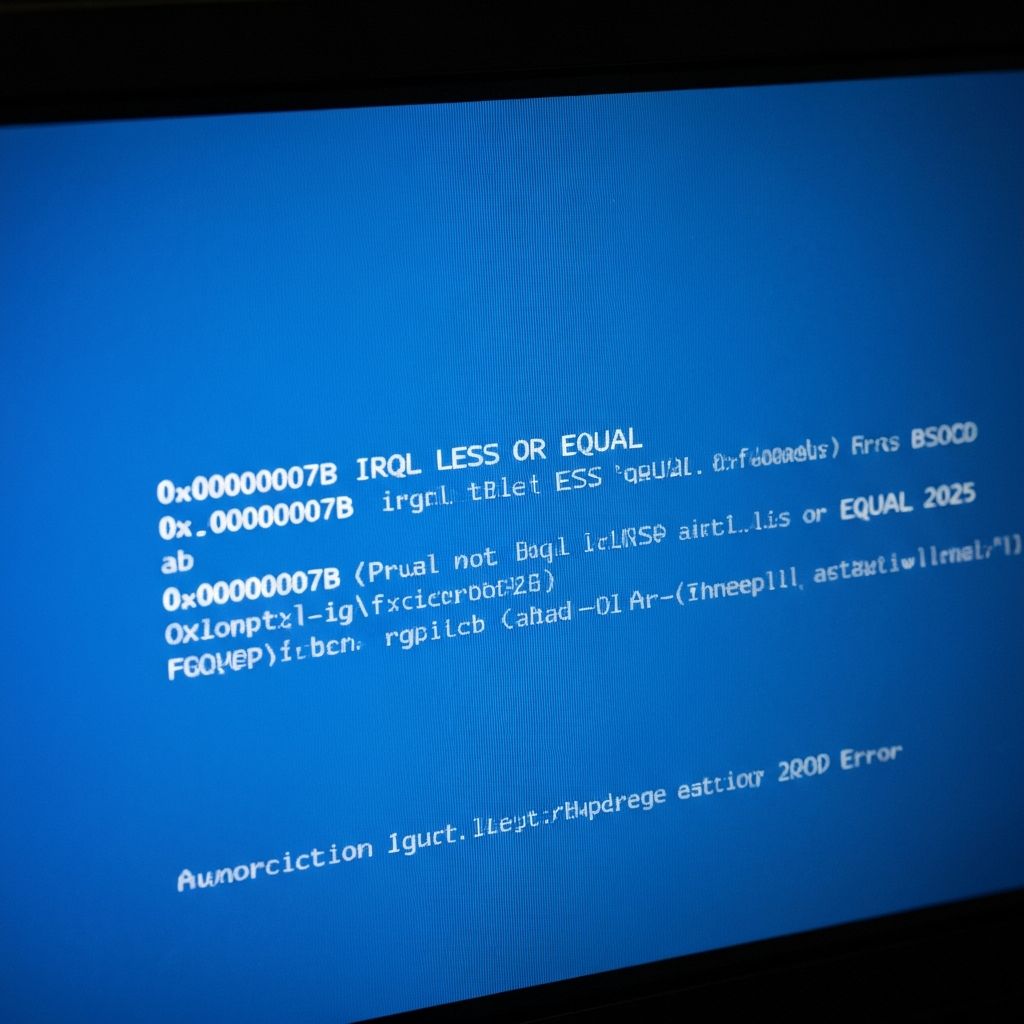
Fix Windows Driver IRQL NOT LESS OR EQUAL BSOD 2025
Resolve Windows IRQL_NOT_LESS_OR_EQUAL blue screen error. Fix driver conflicts, memory issues, and kernel-level crashes causing IRQL BSOD stop code in Windows 10/11 2025.
What is IRQL_NOT_LESS_OR_EQUAL Error?
IRQL_NOT_LESS_OR_EQUAL is a fatal Blue Screen of Death (BSOD) error occurring when a driver or system process attempts to access memory at an incorrect IRQL (Interrupt Request Level). This kernel-mode error indicates improper memory addressing by drivers, often network or graphics drivers, causing immediate system crash.
Understanding IRQL levels
IRQL hierarchy in Windows kernel:
- PASSIVE_LEVEL (0) - Normal user-mode operations
- APC_LEVEL (1) - Asynchronous procedure calls
- DISPATCH_LEVEL (2) - Thread scheduling, DPCs
- DEVICE_LEVEL (various) - Hardware interrupt levels
- HIGH_LEVEL (15) - Critical system operations
Error occurs when code at lower IRQL tries accessing memory restricted to higher IRQL, violating kernel protection.
Common causes
- Faulty network adapter drivers (most common in 2025)
- Graphics driver bugs accessing invalid memory addresses
- RAM hardware failures or incompatibilities
- Overclocked CPU/RAM causing memory instability
- Antivirus software drivers with kernel-mode bugs
- USB device drivers conflicting with system memory
- Corrupted system files in Windows kernel
Step-by-step fixes
- Boot into Safe Mode - Isolates third-party drivers
- Update network drivers - Device Manager > Network adapters > Update
- Update graphics drivers - DDU to clean install latest GPU drivers
- Run Memory Diagnostic - Windows Memory Diagnostic tool full scan
- Check for Windows Updates - Install all pending KB patches
- Disable overclocking - Reset BIOS to default settings
- Run SFC and DISM - Repair system file corruption
- Check crash dumps - C:\\Windows\\Minidump for driver causing crashes
Identifying culprit driver
Using crash dumps to find problematic driver:
- Install WinDbg from Windows SDK
- Open latest .dmp file from C:\\Windows\\Minidump
- Run !analyze -v command
- Look for "Probably caused by" line showing driver name
- Update, rollback, or uninstall that specific driver
- Common culprits: wdf01000.sys (network), nvlddmkm.sys (NVIDIA), atikmdag.sys (AMD)
Network driver specific fixes
Network adapters frequently cause IRQL errors:
- Uninstall network adapter completely from Device Manager
- Restart PC, let Windows install basic driver
- Download latest driver directly from manufacturer (not Windows Update)
- Disable network adapter power management - Properties > Power Management
- If Wi-Fi card causing issues, temporarily use Ethernet or USB Wi-Fi
- Consider replacing problematic network card if driver updates don't help
Memory testing
RAM issues often cause IRQL errors:
- Run Windows Memory Diagnostic - Extended test overnight
- Download MemTest86, create bootable USB, run 8+ passes
- Test RAM sticks individually if multiple installed
- Check if RAM is properly seated in motherboard slots
- Disable XMP/DOCP profiles in BIOS (run RAM at default speeds)
- If errors found, replace faulty RAM module
Graphics driver clean installation
Proper GPU driver installation to fix IRQL:
- Download latest driver from NVIDIA/AMD website
- Boot into Safe Mode
- Run DDU (Display Driver Uninstaller) to remove all GPU drivers
- Restart into normal mode
- Install downloaded driver with clean installation option
- Don't install GeForce Experience or AMD Software if causing issues
Advanced troubleshooting
For persistent IRQL blue screens:
- Check Event Viewer - System logs for critical errors before crash
- Disable kernel-mode antivirus drivers temporarily (AVG, Avast, Kaspersky)
- Update motherboard chipset drivers from manufacturer website
- Check if BIOS needs update (can fix memory controller issues)
- Test with minimal hardware configuration (disconnect USB devices)
- Use Verifier.exe to stress-test drivers and find buggy ones
Overclocking related fixes
If system is overclocked:
- Reset BIOS to factory defaults (Load Optimized Defaults)
- Disable CPU overclocking completely
- Run RAM at JEDEC speeds, not XMP profiles
- Increase memory voltage slightly (0.05V) if unstable
- Lower overclock speeds by 10% and test stability
- Some motherboards have IRQL issues with high memory speeds
Prevention tips
Avoid future IRQL errors:
- Keep all drivers updated, especially network and graphics
- Don't overclock unless system proven stable with stress tests
- Use quality RAM from reputable manufacturers
- Regular system file checks (SFC scan monthly)
- Avoid beta or pre-release drivers in production systems
- Create system restore points before major driver updates
\\\`
Related errors
Fix Windows BSOD kernel security check failure. Memory corruption, driver conflicts, and system file errors causing critical security check crashes.
Resolve SYSTEM_SERVICE_EXCEPTION BSOD error in Windows 10/11. Fix driver crashes, DPC watchdog violations, and kernel exceptions causing system service exception blue screens 2025.