
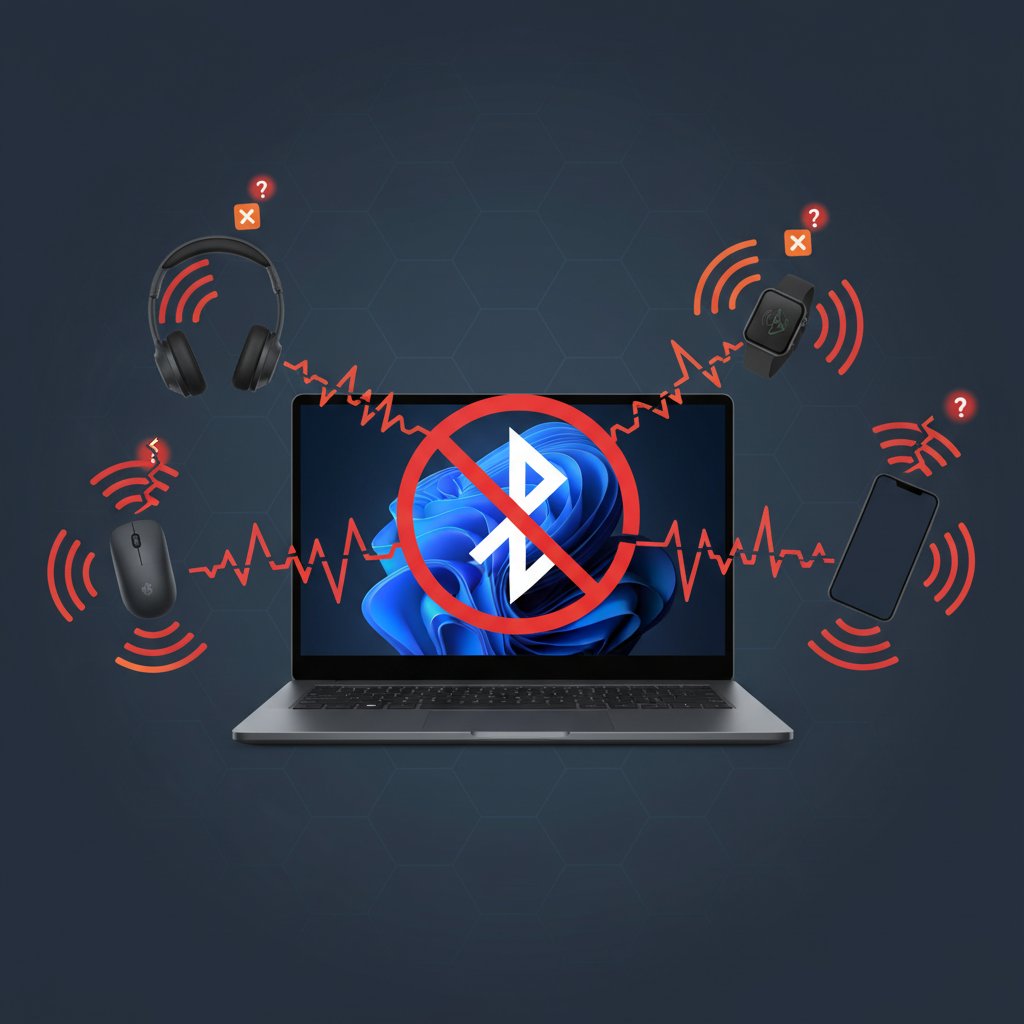
Windows 11 Bluetooth Not Working After KB5074109 Update
Fix Bluetooth not working or missing from Device Manager after the Windows 11 January 2026 KB5074109 update. Restore Bluetooth connectivity and audio devices.
What is the Windows 11 Bluetooth issue after update?
After installing the January 2026 security update KB5074109, many Windows 11 users report that Bluetooth has completely stopped working. In some cases, the Bluetooth toggle disappears from Settings, Bluetooth is removed from Device Manager entirely, and the system acts as if no Bluetooth hardware exists. Paired devices like headphones, mice, and keyboards lose their connections and cannot be re-paired.
This is a known regression introduced by Microsoft's January 2026 Patch Tuesday update, affecting both built-in Bluetooth adapters and USB Bluetooth dongles across multiple hardware vendors including Intel, Realtek, and MediaTek chipsets.
When does it occur?
- Immediately after installing the KB5074109 update and restarting
- Bluetooth toggle disappears from Settings > Bluetooth & devices
- Bluetooth adapter vanishes from Device Manager
- Previously paired devices (headphones, mice, keyboards) stop connecting
- Bluetooth troubleshooter shows an error and cannot find the adapter
- After upgrading to Windows 11 builds 26100.7623 or 26200.7623
Common causes
- KB5074109 update corrupting or disabling Bluetooth driver stack
- Bluetooth driver incompatibility with the updated Windows 11 kernel
- Windows Update replacing the working Bluetooth driver with a generic or broken version
- Bluetooth support service (bthserv) failing to start after the update
- Corrupted Bluetooth device registry entries after the patching process
- Power management settings putting the Bluetooth adapter into a sleep state
- Intel or Realtek Bluetooth firmware conflicts with the January 2026 update
Step-by-step fixes
- Run the Bluetooth troubleshooter — Go to Settings > System > Troubleshoot > Other troubleshooters and click Run next to Bluetooth. On Windows 11 24H2+, you can also open the Get Help app and search for "Bluetooth troubleshooter" for an enhanced guided diagnostic.
- Check if the Bluetooth service is running — Press Win + R, type
services.msc, and press Enter. Find Bluetooth Support Service in the list. If it is stopped or disabled, right-click it, select Properties, set Startup type to Automatic, click Start, then OK. Also check Bluetooth Audio Gateway Service and ensure it is set to Manual.
- Re-enable the Bluetooth adapter in Device Manager — Press Win + X and select Device Manager. Expand Bluetooth. If your adapter appears with a down arrow or warning icon, right-click it and select Enable device. If Bluetooth is not visible, click View > Show hidden devices to reveal it.
- Update or rollback the Bluetooth driver — In Device Manager, right-click your Bluetooth adapter and select Update driver > Search automatically. If the issue started after the update, try Roll Back Driver instead (under the Driver tab in Properties). Download the latest driver directly from your laptop manufacturer's support page (e.g., Dell, HP, Lenovo) or chipset vendor (Intel, Realtek).
- Reinstall the Bluetooth adapter — In Device Manager, right-click the Bluetooth adapter and select Uninstall device. Check the box "Attempt to remove the driver for this device." Restart your PC. Windows will automatically reinstall the Bluetooth driver on boot.
- Disable Bluetooth power management — In Device Manager, right-click the Bluetooth adapter, select Properties > Power Management tab. Uncheck Allow the computer to turn off this device to save power. Click OK and restart.
- Reset network settings — Go to Settings > Network & internet > Advanced network settings > Network reset. Click Reset now. This reinstalls all network adapters including Bluetooth and resets networking components to their defaults. You will need to re-pair all Bluetooth devices afterward.
- Run SFC and DISM to repair system files — Open Command Prompt as administrator. Run
sfc /scannowfirst. Then runDISM /Online /Cleanup-Image /RestoreHealth. Restart your PC. Corrupted system files from the update process can break driver loading.
If it still doesn't work
If Bluetooth remains missing after all fixes, check if an out-of-band patch has been released by going to Settings > Windows Update > Check for updates and installing any pending updates, including optional ones. You can also temporarily uninstall KB5074109 via Settings > Windows Update > Update history > Uninstall updates, though this removes security patches. For USB Bluetooth dongles, try a different USB port (USB 2.0 ports often work better than USB 3.0 for Bluetooth). If you need Bluetooth urgently and your internal adapter is unresponsive, an inexpensive USB Bluetooth 5.0+ adapter can serve as a temporary workaround while waiting for Microsoft's next cumulative update.
Related errors
Fix Windows 11 UNMOUNTABLE_BOOT_VOLUME blue screen after installing KB5074109 January 2026 update. Recover your PC with WinRE and out-of-band patches.
Resolve Windows 11 WiFi showing connected but no internet access after updates. Fix network adapter issues, DNS problems, and driver conflicts preventing internet connection post-update 2025.
Resolve Windows 11 BSOD driver power state failure. Sleep mode crashes, driver conflicts, and power management errors causing blue screen on wake.