
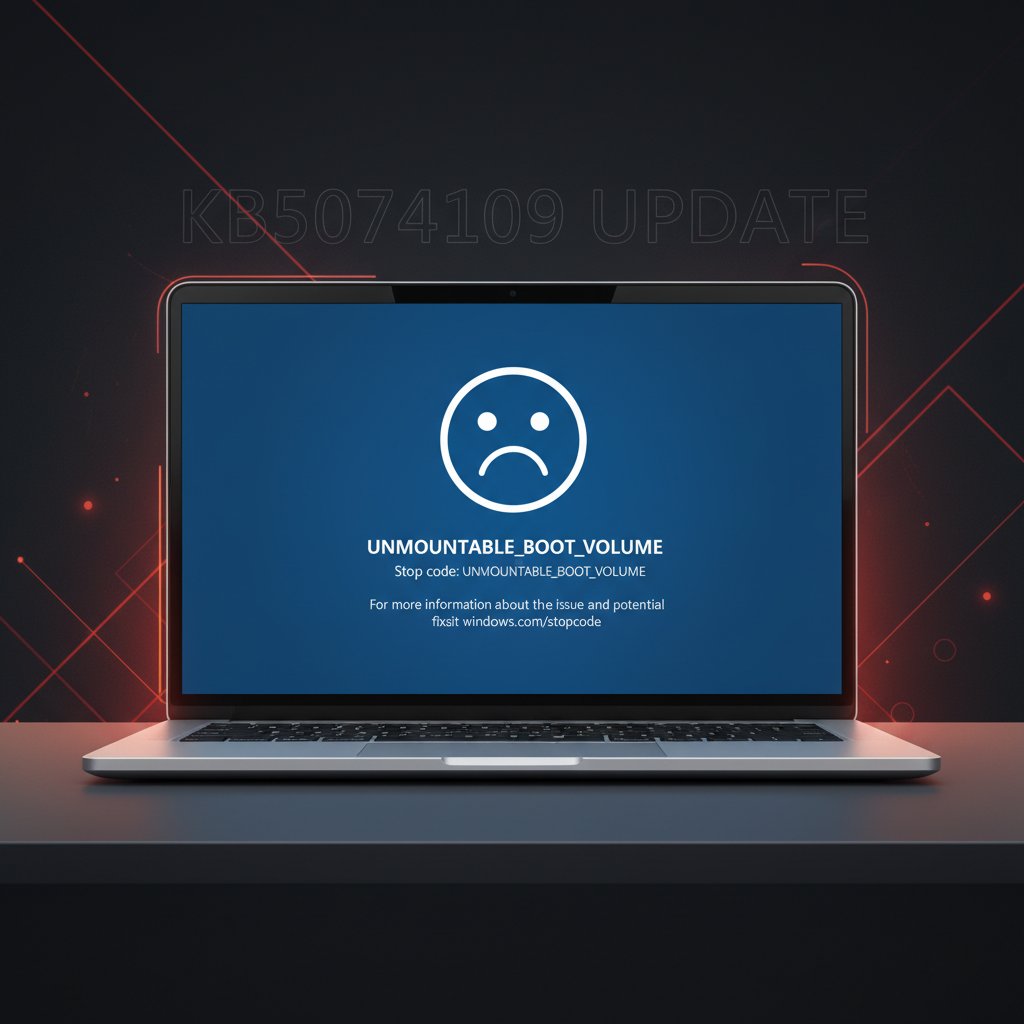
Windows 11 KB5074109 UNMOUNTABLE_BOOT_VOLUME Boot Failure
Fix Windows 11 UNMOUNTABLE_BOOT_VOLUME blue screen after installing KB5074109 January 2026 update. Recover your PC with WinRE and out-of-band patches.
What is the UNMOUNTABLE_BOOT_VOLUME error after KB5074109?
The UNMOUNTABLE_BOOT_VOLUME error (stop code 0xED) is a critical blue screen of death (BSOD) that prevents Windows 11 from starting. After installing the January 2026 Patch Tuesday update KB5074109, some PCs crash during boot and display this stop error. The system cannot mount the boot volume — the disk partition containing Windows — and fails to load the operating system entirely.
Microsoft has confirmed that this issue primarily affects devices that previously had a failed installation of the December 2025 security update. Those PCs were left in an improper state, and KB5074109 triggers the boot failure on that broken baseline. Both Windows 11 24H2 (Build 26100.7623) and 25H2 (Build 26200.7623) are affected, mostly on commercial/enterprise PCs, though consumer devices are also impacted.
When does it occur?
- Immediately after installing KB5074109 and rebooting the PC
- On devices where the December 2025 update (KB5044384) previously failed and rolled back
- After Windows 11 automatically applies the January 2026 cumulative update
- On both 24H2 and 25H2 builds of Windows 11
- Primarily on physical hardware (virtual machines are generally unaffected)
Common causes
- Failed December 2025 update left corrupted boot state — The root cause is a previous failed installation of the December 2025 update that left system files in an inconsistent state
- KB5074109 triggers the underlying corruption — The January update attempts to modify boot-critical files that were already damaged
- Disk file system inconsistencies — The boot partition's NTFS structures may be corrupted from the failed prior update
- Secure Boot or BitLocker conflicts — Encrypted volumes can complicate recovery when boot files are damaged
- Automatic Windows Update — PCs with automatic updates enabled installed KB5074109 without admin intervention, catching users off guard
Step-by-step fixes
- Enter Windows Recovery Environment (WinRE) — Force-shutdown your PC by holding the power button for 10-15 seconds. Turn it on and force-shutdown again during startup. Repeat this three times. On the fourth boot, Windows will enter WinRE automatically.
- Uninstall KB5074109 via WinRE — In WinRE, go to Troubleshoot > Advanced options > Uninstall Updates > Uninstall latest quality update. Follow the prompts and restart. If this fails with error 0x800f0905, proceed to the next step.
- Use System Restore — In WinRE, go to Troubleshoot > Advanced options > System Restore. Select a restore point dated before the KB5074109 installation and restore your system.
- Run Startup Repair — In WinRE, go to Troubleshoot > Advanced options > Startup Repair. Let Windows attempt to diagnose and fix the boot configuration automatically.
- Repair boot files via Command Prompt — In WinRE, open Troubleshoot > Advanced options > Command Prompt. Run these commands in order:
bootrec /fixmbr,bootrec /fixboot,bootrec /rebuildbcd, andchkdsk C: /r. Restart after completion.
- Boot from USB recovery media — If WinRE is inaccessible, create a Windows 11 bootable USB on another PC using the Media Creation Tool. Boot from the USB, select "Repair your computer" (not "Install now"), and use the recovery tools.
- Install the out-of-band fix — If you can boot after uninstalling KB5074109, immediately install the out-of-band patch: KB5077744 for Windows 11 24H2/25H2 or KB5077797 for 23H2. Download from the Microsoft Update Catalog at
catalog.update.microsoft.com.
- Pause future updates temporarily — Go to Settings > Windows Update > Pause updates for 1-2 weeks until Microsoft releases the February 2026 Patch Tuesday fix on February 10, 2026, which is expected to fully resolve the issue.
If it still doesn't work
If none of the above steps restore your system, you may need to perform an in-place repair install. Boot from a Windows 11 USB, choose "Install now," select "Upgrade" (not Custom), and install over your existing Windows. This preserves your files and applications while replacing system files. Make sure to back up critical data first if you can access the drive from another PC or a Linux live USB.
For enterprise environments, Microsoft recommends checking update history for failed December 2025 installs across your fleet and avoiding deployment of KB5074109 to at-risk devices. Monitor the Windows Release Health dashboard for official resolution timelines.
Related errors
Resolve Windows 11 black screen after latest 2025 updates. Complete guide to fix post-update black screens with cursor, blank display, and boot failures after KB patches on Windows 11.
Resolve Windows 11 infinite boot loop after factory reset. Fix automatic repair loop, startup repair cycle, and continuous restart problems preventing Windows 11 from booting after reset 2025.
Fix Windows 11 BSOD memory management error. RAM issues, driver conflicts, and memory corruption causing blue screen crashes with MEMORY_MANAGEMENT stop code.