
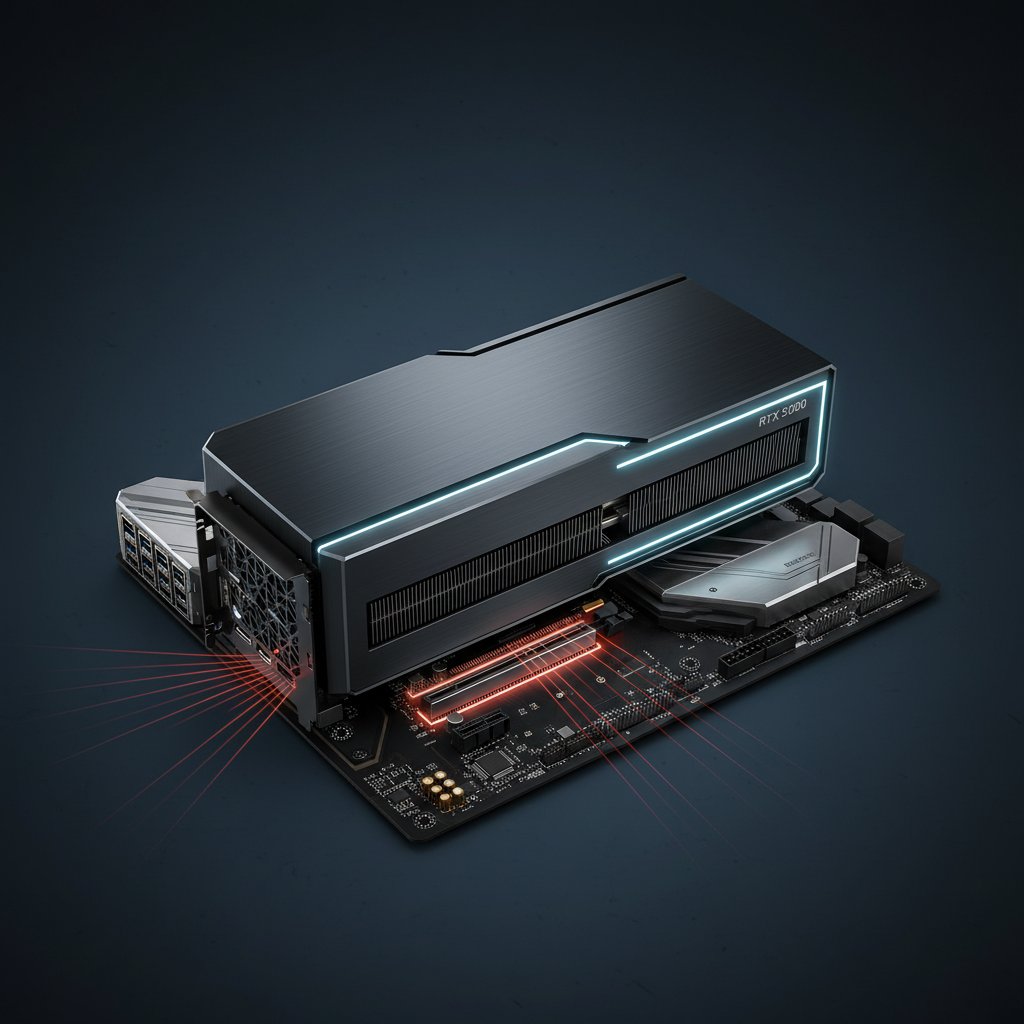
RTX 5090 PCIe 5.0 Black Screen Compatibility Issue
Fix NVIDIA RTX 5090 and 5080 black screen caused by PCIe 5.0 signal integrity issues. Resolve boot failures and crashes by forcing PCIe 4.0 mode in BIOS.
What is the RTX 5090 PCIe 5.0 black screen issue?
The RTX 5090 (and RTX 5080) PCIe 5.0 black screen issue is a hardware signal integrity problem where the GPU loses communication with the motherboard over the PCIe 5.0 bus. The display goes completely black — sometimes at boot, sometimes during use — and the system either hangs or loses GPU detection entirely. Unlike driver-related crashes that show error codes, this issue produces no error message because the GPU physically drops off the PCIe bus.
The problem affects an estimated 15-25% of RTX 5090 Founders Edition cards on PCIe 5.0 motherboards. Reviewer der8auer confirmed the issue in testing: running an RTX 5080 FE with the BIOS set to PCIe 5.0 caused frequent crashes and black screens, while forcing PCIe 4.0 eliminated them. The root cause is signal integrity degradation at PCIe Gen 5 speeds, worsened by riser cables, long slots, or marginal motherboard trace routing.
When does it occur?
- Immediately after installing the RTX 5090/5080 in a PCIe 5.0 slot
- After a GPU driver update triggers a bus re-enumeration
- During heavy GPU load when power draw and signal noise peak simultaneously
- On motherboards with PCIe 5.0 set to "Auto" in BIOS
- When using PCIe riser cables or vertical GPU mounts
- After the system resumes from sleep or hibernate
Common causes
- PCIe 5.0 signal integrity issues — The RTX 5090's PCIe 5.0 interface is sensitive to trace quality, slot contact, and electromagnetic interference on some motherboards
- Motherboard BIOS PCIe auto-negotiation bug — The "Auto" setting in BIOS may incorrectly negotiate Gen 5 speeds on marginal connections
- Outdated motherboard BIOS — Early BIOS versions lack the PCIe 5.0 training fixes released by motherboard vendors in January-February 2026
- Riser cables degrading signal quality — Vertical GPU mounts and PCIe riser cables add signal loss that pushes Gen 5 beyond tolerance
- GPU not fully seated in slot — Heavy RTX 5090 cards (2+ kg) can tilt in the slot, creating poor pin contact
- Outdated GPU VBIOS — Early RTX 5090 cards shipped with VBIOS versions that have aggressive PCIe link training parameters
- Insufficient or unstable power delivery — A weak PSU or daisy-chained power cables cause voltage dips that destabilize the PCIe link
Step-by-step fixes
- Force PCIe 4.0 in BIOS — Shut down your PC, enter BIOS (press DEL or F2 during boot), navigate to Advanced > PCIe Configuration (location varies by vendor), and change the PCIe slot speed from "Auto" or "Gen5" to "Gen4." Save and reboot. On some boards, you must set ALL PCIe slots to Gen4, including M.2 slots. Performance loss is only 1-4% in real-world gaming.
- Update your motherboard BIOS — Download the latest BIOS from your motherboard manufacturer's support page. ASUS, MSI, Gigabyte, and ASRock all released RTX 5090 compatibility BIOS updates in January-February 2026. Flash via USB using the BIOS flashback feature or the built-in EZ Flash utility.
- Update the GPU VBIOS — Check your GPU manufacturer's support page for a VBIOS update. MSI confirmed that their RTX 5090 Gaming Trio OC VBIOS update fixed black screens. Install through the manufacturer's software (e.g., MSI Center, ASUS GPU Tweak).
- Reseat the GPU — Power off, unplug the PSU, and physically remove and reinsert the GPU into the PCIe slot. Press firmly until the retention clip clicks. Use a GPU support bracket to prevent sag on heavy cards like the RTX 5090 (weighing over 2 kg).
- Use dedicated power cables — Do not daisy-chain power connectors. Use a separate cable from the PSU for the GPU's 16-pin connector. Use only the adapter cable that came with the card — avoid aftermarket 8-pin to 16-pin adapters.
- Clean install GPU drivers with DDU — Boot into Safe Mode, run Display Driver Uninstaller (DDU), select "Clean and restart." Then install driver version 576.28 or newer, which includes PCIe stability improvements.
- Remove any PCIe riser cable — If using a vertical GPU mount, install the card directly into the motherboard's primary x16 slot. Riser cables degrade PCIe 5.0 signal quality enough to cause intermittent black screens.
- Reset BIOS to optimized defaults — If you have any CPU or memory overclocks (including XMP/EXPO), reset BIOS to defaults first to rule out system instability. Re-enable XMP/EXPO after confirming the GPU is stable.
If it still doesn't work
If forcing PCIe 4.0 and updating BIOS/VBIOS do not resolve the black screens, the GPU itself may have a hardware defect. Run a stability test with FurMark or 3DMark Time Spy Stress Test for 30 minutes at PCIe 4.0. If it still crashes, contact NVIDIA or your card vendor for an RMA.
As a temporary diagnostic, test the card in a different PC or motherboard to confirm whether the issue follows the GPU or stays with the motherboard. Monitor NVIDIA's official GeForce forums and r/nvidia for VBIOS and driver updates, as NVIDIA is actively patching PCIe 5.0 compatibility through both firmware and software fixes.
Related errors
Fix NVIDIA RTX 5090 and 5080 driver crashes with VIDEO_ENGINE_TIMEOUT_DETECTED error. Resolve black screens, game crashes, and DLSS instability on RTX 50 series GPUs.
Fix PC that powers on but monitor shows no display. Black screen issues, POST failures, and connection problems preventing video output at startup.
Resolve Gigabyte motherboard white VGA LED with no display signal. GPU detection failure, graphics card issues, and monitor no signal errors.