
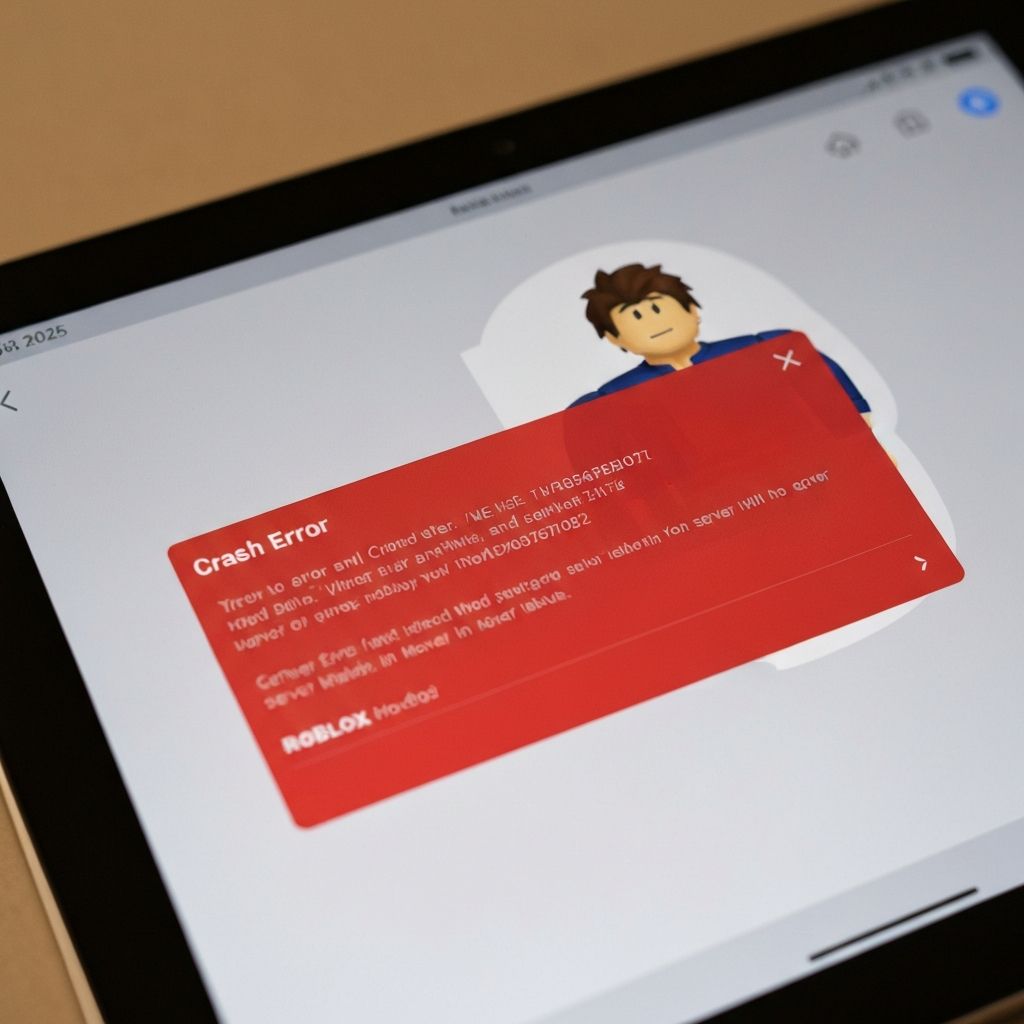
Fix Roblox Crash An Error Occurred Android 2025 Latest
Solve Roblox Android crash error 'An error occurred, please try again' in 2025. Complete troubleshooting for app crashes, freezes, and error messages on Android devices with latest updates.
What is "An Error Occurred" Roblox Android Crash?
The "An error occurred, please try again" message appears when Roblox fails to load or crashes on Android devices in 2025. This generic error masks various underlying issues related to app compatibility, storage problems, or Android system conflicts with the latest Roblox updates.
When does this crash occur?
The error appears during:
- App launch immediately after opening Roblox
- Loading games from the discover page
- Joining specific experiences with high graphics
- After recent Android OS updates
- When switching between apps and returning to Roblox
Common causes in 2025
- Incompatibility with Android 14/15 updates
- Insufficient storage space for game assets
- Corrupted Roblox cache from incomplete downloads
- Outdated Android WebView component
- Conflicting apps using same resources
- RAM management issues on budget devices
- Google Play Services outdated or malfunctioning
Step-by-step fixes
- Force stop Roblox - Settings > Apps > Roblox > Force Stop, then reopen
- Clear Roblox cache and data - Settings > Apps > Roblox > Storage > Clear Cache, then Clear Data
- Update Android System WebView - Play Store > Android System WebView > Update
- Free up storage space - Delete at least 2GB of unused apps/files
- Update Roblox to latest version - Check Play Store for pending updates
- Restart device in safe mode - Test if third-party apps cause conflicts
- Update Google Play Services - Play Store > Google Play Services > Update
- Reinstall Roblox completely - Uninstall, restart phone, fresh install
Android-specific solutions 2025
For devices running Android 14 or Android 15:
- Enable developer options > Disable hardware overlays (temporary fix)
- Check if Game Mode settings conflict with Roblox
- Disable battery optimization for Roblox - Settings > Battery > Roblox > Unrestricted
- Clear Google Play Store cache - May fix download/update issues
- Factory reset as last resort - Backup data first, clean OS often resolves persistent crashes
Device-specific fixes
Samsung devices (One UI 6+):
- Disable Game Booster if causing conflicts
- Check Game Launcher settings for Roblox restrictions
Xiaomi/MIUI devices:
- Disable MIUI Optimization in Developer Options
- Add Roblox to Autostart permissions
OnePlus devices:
- Disable RAM Boost for Roblox app
- Check OxygenOS gaming mode settings
Prevention measures
Keep your Android device stable:
- Maintain at least 3GB free storage always
- Update all apps and system regularly
- Avoid installing too many gaming apps simultaneously
- Clear cache for all apps monthly
- Don't force-close Roblox abruptly during gameplay
\\\`
Related errors
Fix System UI not responding error on Android. System UI crashes, launcher freezes, and interface errors causing Android home screen to become unresponsive.
Fix apps that keep stopping on Samsung Android phones. App crashes, compatibility issues, and system errors causing repeated app closure messages.