
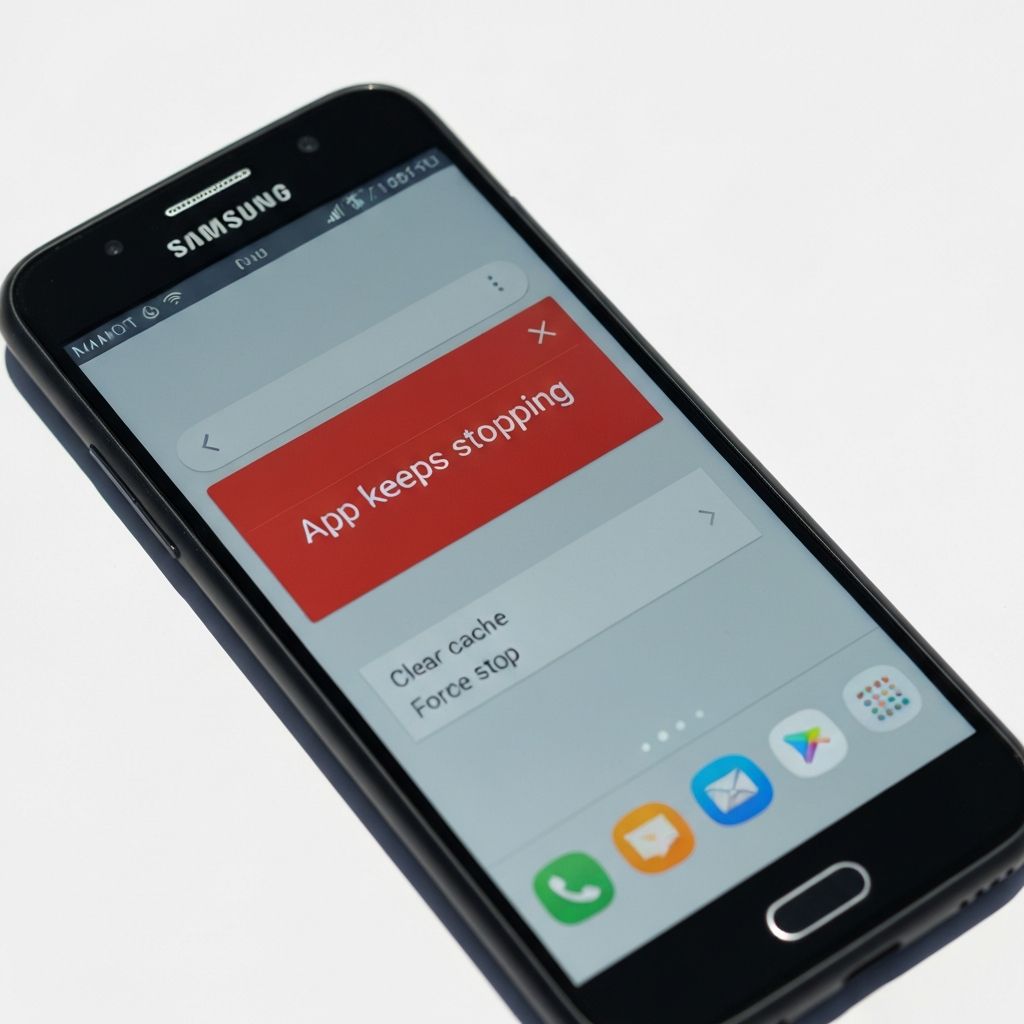
Android App Keeps Stopping Samsung
Fix apps that keep stopping on Samsung Android phones. App crashes, compatibility issues, and system errors causing repeated app closure messages.
What is "App Keeps Stopping"?
The "[App name] keeps stopping" error appears when an Android app crashes repeatedly on Samsung devices. The full message reads "[App] keeps stopping" with options to "Close app" or "Open app again."
When does it occur?
This error appears when:
- Opening specific apps after Android update
- Launching recently updated apps
- Following Samsung One UI update
- After installing new apps
- When storage is nearly full
Common causes
- Corrupted app cache or data
- Outdated app version incompatible with Android version
- Insufficient storage space
- Conflicting apps running simultaneously
- Corrupted Android system cache
- App not optimized for Samsung One UI
- Low RAM causing app termination
Step-by-step fixes
- Clear app cache - Settings > Apps > Select app > Storage > Clear Cache
- Clear app data - Same location as above > Clear Data (note: this resets app)
- Update the app - Google Play Store > My apps & games > Update specific app
- Restart phone - Power off completely, wait 30 seconds, power back on
- Check available storage - Settings > Device care > Storage (need at least 1-2GB free)
- Uninstall and reinstall app - Completely remove app then reinstall from Play Store
- Wipe cache partition - Power off > Hold Volume Up + Power > Release when Samsung logo appears > Use volume keys to select "Wipe cache partition"
- Update Android/One UI - Settings > Software update > Download and install
If it still doesn't work
If a specific app continues crashing after all fixes, it may be incompatible with your Android version or Samsung device. Check the app's Play Store reviews to see if other Samsung users report similar issues. Contact the app developer through Play Store or report the bug.
For system apps that keep stopping (like Samsung Keyboard or Gallery), try booting into Safe Mode (hold power button > tap and hold Power off > OK to reboot in Safe Mode). If the app works in Safe Mode, a third-party app is causing conflicts.
Related errors
Fix System UI not responding error on Android. System UI crashes, launcher freezes, and interface errors causing Android home screen to become unresponsive.
Resolve Google Play Store error DF-DFERH-01. Download failures, connection issues, and Play Store cache problems preventing app installations.