
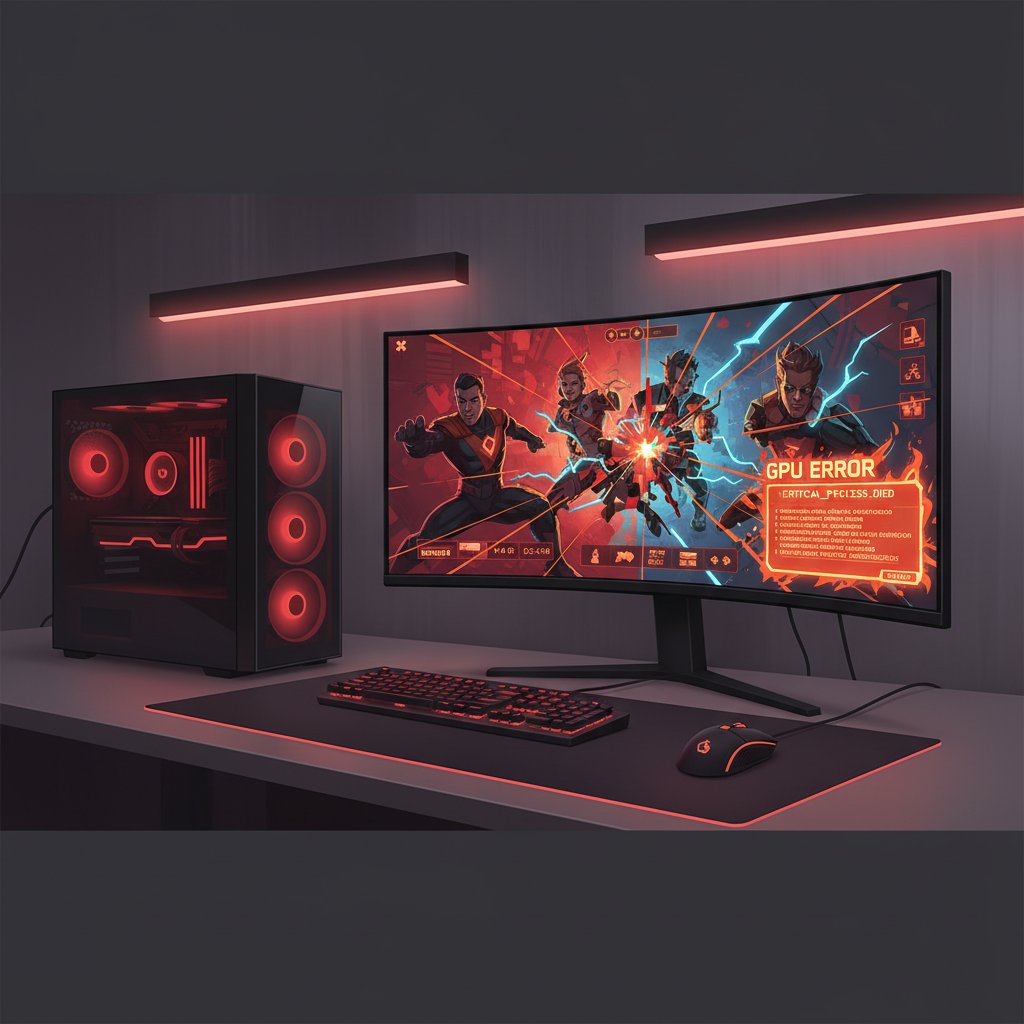
Marvel Rivals Crashing on PC — Error Codes and Fixes
Fix Marvel Rivals crashes on PC including error code 10, error code 4, GPU crash dump triggered, 0xc0000005 access violation, and stuck at 99% loading screen.
What is the Marvel Rivals crashing issue?
Marvel Rivals, built on Unreal Engine 5, suffers from several crash types on PC — ranging from network error codes at launch to GPU crash dumps mid-match and access violations that force a hard restart. The crashes are not random: each error code points to a specific root cause, and fixing the right one depends on identifying your exact crash type.
This guide covers the four most common crash categories: network errors (codes 4 and 10), GPU crash dumps, 0xc0000005 access violations, and the 99% loading screen freeze.
When does it occur?
- Error code 4 or 10 appears at launch when the game cannot connect to servers
- "GPU Crash Dump Triggered" happens mid-match after several games, especially on NVIDIA GPUs
- 0xc0000005 (EXCEPTION_ACCESS_VIOLATION) crashes to desktop with the UE5 crash reporter
- 99% loading screen freezes when loading into a match, never completing
- "An Unreal process has crashed: UE-Marvel" generic UE5 crash after driver or RAM instability
Common causes
- NVIDIA shader cache overflow — the game's UE5 engine uses more shaders than the default cache size can handle, causing GPU crash dumps after several matches
- Outdated NVIDIA drivers — driver version 566.36 causes widespread GPU crashes; versions before 576.80 have known shader cache bugs
- Hardware-Accelerated GPU Scheduling (HAGS) misconfiguration — on RTX 40/50 series with driver 572.40+, HAGS must be enabled or the game crashes
- Unstable RAM overclocks (XMP/A-XMP) — the most common hardware cause of 0xc0000005 access violations
- Game installed on HDD instead of SSD — primary cause of the 99% loading screen freeze
- Intel 13th/14th Gen CPU microcode instability — causes access violations during shader compilation
- Server outages or DNS issues — triggers error codes 4 and 10 at launch
Step-by-step fixes
- Update NVIDIA driver to 576.80 or later — This is the officially recommended driver by both NetEase and NVIDIA. It fixes the shader cache overflow that has caused GPU crashes since launch. Download from the NVIDIA App or [nvidia.com](https://www.nvidia.com/drivers). If you're on driver 566.36, this alone may resolve all crashes.
- Set shader cache to 10 GB or Unlimited — Open NVIDIA Control Panel > Manage 3D Settings > Shader Cache Size > set to 10 GB or Unlimited. Then clear old cache: navigate to
%USERPROFILE%\AppData\LocalLow\NVIDIA\PerDriverVersion\DXCacheand delete the DXCache folder. Restart your PC.
- Fix HAGS for RTX 40/50 series — Go to Windows Settings > System > Display > Graphics > Change default graphics settings. If you're on driver 572.40 or later with an RTX 40 or 50 series card, enable Hardware-Accelerated GPU Scheduling. If you're on an older card or driver, try disabling it instead.
- Fix error codes 4 and 10 (network errors) — Restart the game and launcher. Change DNS to Google (8.8.8.8 / 8.8.4.4): open Command Prompt as admin, run
ipconfig /flushdns. Verify game files on Steam (Properties > Installed Files > Verify Integrity). Check server status on [Downdetector](https://downdetector.com).
- Fix 0xc0000005 access violation — If you have XMP/A-XMP enabled, enter BIOS and reduce RAM frequency by 200-400 MHz (e.g., 3600 MHz → 3200 MHz). One documented case: user with DDR4 3600 MHz reduced to 3000 MHz and got 80+ hours crash-free. Also update your BIOS to the latest version, especially on Intel 13th/14th Gen CPUs.
- Fix 99% loading screen — Move or reinstall the game to an SSD (preferably your C: drive). The game's asset streaming cannot keep up with HDD read speeds. On Steam: right-click the game > Properties > Installed Files > Move Install Folder.
- Disable overlays and set power mode — Turn off Steam Overlay (Steam > Settings > In-Game > uncheck overlay), NVIDIA GeForce Experience Overlay, and Discord Overlay. In NVIDIA Control Panel, set Power Management Mode to Prefer Maximum Performance.
- Delete crash dump folder — If your game crashes repeatedly, the crash dump folder can grow to several GB and slow performance: delete
C:\Users\<USER>\AppData\Local\Marvel\Saved\Crashes.
If it still doesn't work
If none of the above resolve your crashes, try adding -dx12 as a Steam launch option (Properties > General > Launch Options) to force DirectX 12 exclusive mode. Disable Global Illumination and Reflections in the game's graphics settings. Set your Windows Power Plan to Power Saver — counterintuitively, this has resolved shader-related crashes for some users by reducing GPU boost clocks.
For Intel 13th/14th Gen CPU users, check your motherboard manufacturer's website for the latest BIOS with the microcode stability fix — this resolves access violations across all UE5 games, not just Marvel Rivals. If the game still crashes, uninstall completely, delete leftover folders in %AppData% and %TEMP%, and reinstall on an SSD.
Related errors
Fix Nioh 3 DXGI_ERROR_DEVICE_REMOVED 0x887A0006 crash on PC. Disable Hardware-Accelerated GPU Scheduling, Frame Generation, and overlay conflicts.
Resolve Valorant VAN 84 Vanguard error on Windows 11. Complete guide to fix anti-cheat initialization failures, secure boot issues, and TPM problems causing VAN 84 in Valorant 2025.
Fix Windows 11 black screen on NVIDIA GPUs after installing KB5074109 January 2026 update. Resolve display driver conflicts and screen flicker issues.