
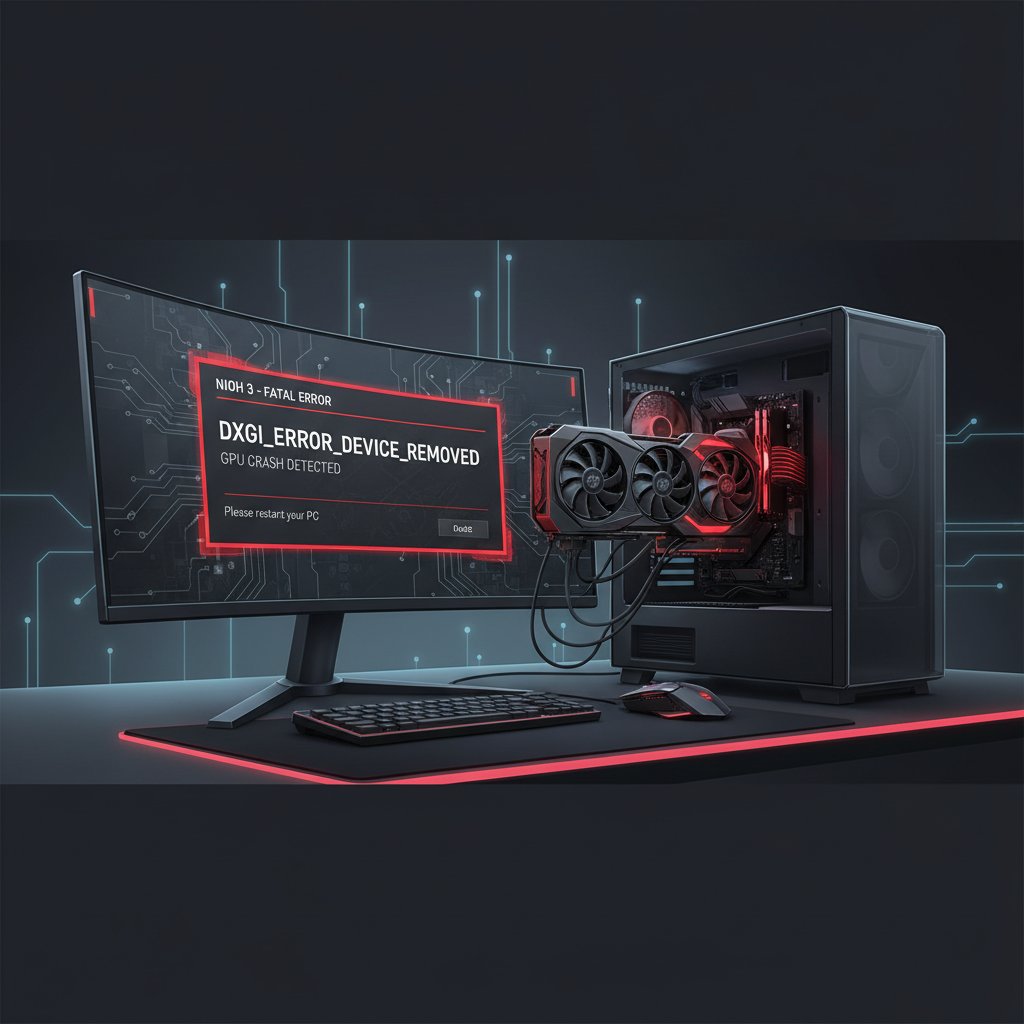
Nioh 3 DXGI_ERROR_DEVICE_REMOVED Fatal Crash on PC
Fix Nioh 3 DXGI_ERROR_DEVICE_REMOVED 0x887A0006 crash on PC. Disable Hardware-Accelerated GPU Scheduling, Frame Generation, and overlay conflicts.
What is the DXGI_ERROR_DEVICE_REMOVED crash in Nioh 3?
The DXGI_ERROR_DEVICE_REMOVED error (code 0x887A0006) is a DirectX crash that occurs when the GPU loses communication with Windows during Nioh 3 gameplay. Unlike generic crashes or black screens, this specific error terminates the game with a fatal error dialog referencing GetDeviceRemovedReason and the DXGI error code. It affects both NVIDIA and AMD GPUs, including high-end cards like the RTX 5090 and RX 7900 XTX.
Team Ninja's Katana Engine has a documented history of PC instability issues, and the DXGI crash in Nioh 3 is primarily triggered by Frame Generation, Hardware-Accelerated GPU Scheduling, and overlay software conflicts.
When does it occur?
- During GPU-intensive scenes with volumetric fog or particle effects
- When Frame Generation (DLSS 4 Multi Frame Generation) is enabled
- After 10-30 minutes of gameplay on overclocked GPUs
- When overlay software (Discord, Steam, GeForce Experience) hooks into the game
- During cutscene transitions that trigger shader recompilation
- On systems with Hardware-Accelerated GPU Scheduling enabled
Common causes
- Hardware-Accelerated GPU Scheduling (HAGS) conflicting with the Katana Engine's DirectX 12 implementation
- DLSS 4 Frame Generation causing GPU communication timeouts
- Overlay software (Discord, Steam, NVIDIA ShadowPlay) injecting code into the rendering pipeline
- GPU overclocking — even factory overclocks — pushing beyond the engine's stability threshold
- Outdated or incompatible GPU drivers (NVIDIA pre-591.86 or AMD pre-26.1.1)
- Volumetric Fog set to High or Ultra causing sustained GPU load spikes
- NVIDIA App "DLSS Override" set to a mode other than "Use 3D Application Setting"
Step-by-step fixes
- Disable Hardware-Accelerated GPU Scheduling — Go to Settings > System > Display > Graphics > Change default graphics settings. Turn off "Hardware-accelerated GPU Scheduling" and restart your PC. This is the single most effective fix for DXGI crashes and is recommended by Microsoft for this error code.
- Disable Frame Generation — In Nioh 3's Graphics Settings, set Frame Generation to Off. The game's DLSS 4 Multi Frame Generation implementation has known compatibility issues that trigger GPU timeouts. You can keep DLSS Super Resolution enabled for upscaling.
- Disable all overlay software — Disable Discord overlay (User Settings > Game Overlay > toggle off), Steam overlay (Library > right-click Nioh 3 > Properties > uncheck Steam Overlay), GeForce Experience overlay, and Xbox Game Bar (Settings > Gaming > Xbox Game Bar > Off). Close MSI Afterburner and RivaTuner if running.
- Update GPU drivers — Install NVIDIA driver 591.86 WHQL (the Nioh 3 Game Ready driver) or AMD Adrenalin 26.1.1. Perform a clean install: download DDU (Display Driver Uninstaller), boot into Safe Mode, run DDU to remove old drivers, restart, then install the new driver.
- Fix NVIDIA App DLSS Override — Open NVIDIA App > Graphics > Global Settings. Set "DLSS Override - Super Resolution Mode" to "Use 3D Application Setting." Team Ninja officially acknowledged this causes display and crash issues.
- Lower Volumetric Fog to Low — In Nioh 3 Graphics Settings, set Volumetric Fog to Low or Off. This setting causes extreme GPU load spikes that trigger the DXGI timeout, with minimal visual quality difference.
- Remove GPU overclocking — Reset your GPU to stock frequencies. Close MSI Afterburner, EVGA Precision, or any OC tool. For AMD RX 7900 XT/XTX users specifically, limit max GPU frequency to 2750 MHz in AMD Adrenalin Software (Performance > Tuning) — crashes are confirmed at default frequencies above 2800 MHz.
- Cap the frame rate — In Nioh 3 Graphics Settings, enable Frame Rate Limit and set it to 60 or 120 FPS. Avoid running unlocked, as sustained maximum GPU utilization triggers the DXGI timeout faster.
If it still doesn't work
If the DXGI crash persists after all the above, increase the Windows TDR (Timeout Detection and Recovery) delay: open Registry Editor, navigate to HKEY_LOCAL_MACHINE\SYSTEM\CurrentControlSet\Control\GraphicsDrivers, create a new DWORD value named TdrDelay and set it to 10 (seconds). Restart your PC. This gives the GPU more time to respond before Windows kills the device. Also try adding -dx11 to Steam launch options (right-click Nioh 3 > Properties > Launch Options) to force DirectX 11 mode, which bypasses most DXGI 1.4 issues. Team Ninja has been actively patching Nioh 3 — check for updates through Steam, as stability patches typically arrive within the first two weeks after launch.
Related errors
Fix Nioh 3 fatal error crashes, black screens, and freezing on PC. Resolve startup failures, cutscene stutters, and shader compilation issues on Steam.
Fix NVIDIA RTX 5090 and 5080 driver crashes with VIDEO_ENGINE_TIMEOUT_DETECTED error. Resolve black screens, game crashes, and DLSS instability on RTX 50 series GPUs.
Fix Battlefield 6 DXGI_ERROR_DEVICE_HUNG and DEVICE_REMOVED GPU crashes. Resolve DirectX errors, driver timeouts, and game freezes on Nvidia and AMD GPUs.