
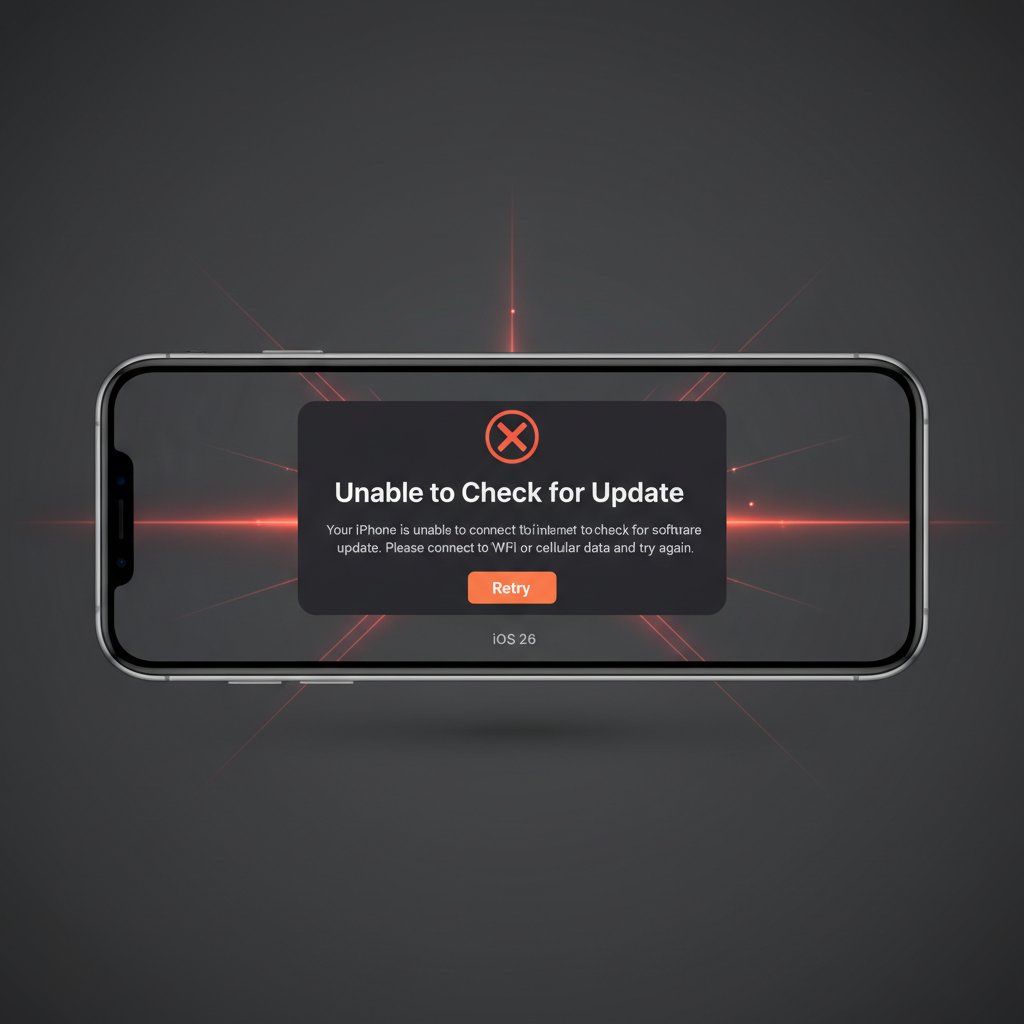
iOS 26 Unable to Check for Update Error on iPhone
Fix the Unable to Check for Update error on iPhone when updating to iOS 26. Resolve server, network, and storage issues blocking your iOS update.
What is the "Unable to Check for Update" error?
This error appears on iPhone when the device fails to communicate with Apple's update servers to verify or download a new iOS version. The screen shows "Unable to Check for Update — An error occurred while checking for a software update." It prevents you from installing iOS 26 or any subsequent update through the standard Settings menu.
The error is usually temporary and caused by server overload, poor network conditions, or insufficient storage space on the device.
When does it occur?
- Immediately after a major iOS release when millions of users try to update simultaneously
- On unstable Wi-Fi networks or when using cellular data for updates
- When the iPhone has less than 5 GB of free storage space
- After a failed or interrupted previous update attempt
- When a beta profile is still installed on the device
- If Apple's update servers are experiencing downtime or maintenance
Common causes
- Apple's software update servers are overloaded during peak release periods
- Weak or unstable Wi-Fi connection dropping during server communication
- Insufficient storage space to download the update package (typically 3–6 GB)
- Leftover iOS beta profile conflicting with the public release channel
- Corrupted update cache from a previously failed download attempt
- VPN or DNS configuration interfering with Apple server connections
- iPhone date and time settings out of sync with Apple servers
Step-by-step fixes
- Check Apple System Status — Visit [apple.com/support/systemstatus](https://www.apple.com/support/systemstatus/) and look for "Software Update" status. If it shows a yellow or red indicator, Apple's servers are under strain — wait a few hours and try again.
- Restart your iPhone — Press and release Volume Up, press and release Volume Down, then hold the Side button until the Apple logo appears. After restart, go to Settings > General > Software Update and try again.
- Switch to a stable Wi-Fi network — Ensure you are on a reliable Wi-Fi connection. Avoid public or congested networks. If your home Wi-Fi is unstable, try moving closer to the router or restart the router itself.
- Free up storage space — Go to Settings > General > iPhone Storage. You need at least 5 GB free for the update. Delete unused apps, old photos, or large videos. Offload unused apps by tapping them and selecting "Offload App."
- Delete the failed update file — Go to Settings > General > iPhone Storage. Scroll down to find the iOS update file (listed as "iOS 26.x"). Tap it and select "Delete Update." Then go back to Settings > General > Software Update to start a fresh download.
- Remove beta profiles — Go to Settings > General > VPN & Device Management. If you see a beta profile (e.g., "iOS Beta Software Profile"), tap it and select "Remove Profile." Restart your iPhone and try updating again.
- Reset Network Settings — Go to Settings > General > Transfer or Reset iPhone > Reset > Reset Network Settings. This clears all saved Wi-Fi networks, VPN settings, and DNS configurations. Reconnect to Wi-Fi and retry the update.
- Update via computer — Connect your iPhone to a Mac or PC with a USB cable. On Mac (macOS Catalina or later), open Finder and select your iPhone in the sidebar. On Windows, open iTunes. Click "Check for Update" and follow the prompts to download and install iOS 26 directly through the computer.
If it still doesn't work
If the error persists after all steps, verify your iPhone model is compatible with iOS 26 by checking [Apple's compatibility list](https://support.apple.com/en-us/ios-26). Older models like iPhone XS and earlier are not supported.
Try updating at off-peak hours (early morning or late night in your time zone) when server load is lower. If you continue to see the error for more than 48 hours and Apple System Status shows no issues, contact [Apple Support](https://support.apple.com/) or visit an Apple Store for in-person assistance. The Genius Bar can install the update using their internal tools.
Related errors
Fix iOS 26.2.1 crashes, battery drain, Bluetooth disconnects, and network failures on iPhone. Step-by-step solutions for all reported iOS 26.2.1 problems.
Resolve iPhone frozen on Apple logo after iOS update. Fix boot loop, black screen with logo, and iPhone won't turn on past Apple logo after updating to latest iOS 2025.
Fix iPhone error 4013 during iOS update or restore. USB connection issues, hardware problems, and iTunes errors preventing iPhone restoration.