
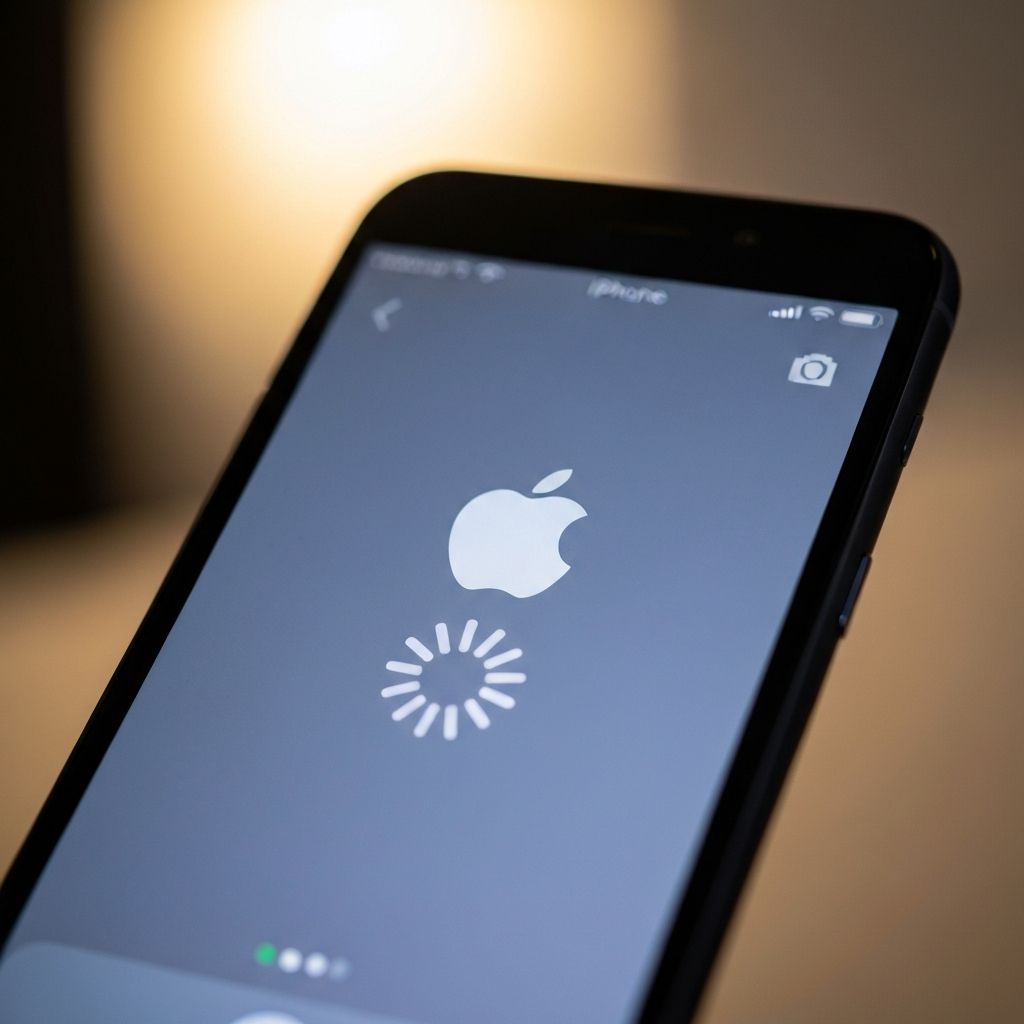
Fix iPhone Stuck on Apple Logo After iOS Update Won't Turn On
Resolve iPhone frozen on Apple logo after iOS update. Fix boot loop, black screen with logo, and iPhone won't turn on past Apple logo after updating to latest iOS 2025.
What is iPhone Stuck on Apple Logo?
iPhone stuck on Apple logo after iOS update is a boot failure where the device displays only the Apple logo indefinitely without reaching lock screen or home screen. This occurs when iOS update corrupts system files, encounters software conflicts, or fails to complete installation properly, leaving the iPhone in an endless boot loop.
When Apple logo loop occurs
This boot issue appears:
- Immediately after iOS update installation
- During iPhone restart after update
- When restoring from backup post-update
- After force restarting during frozen update
- Following interrupted update due to low battery
Common causes
- Corrupted iOS update files from download interruption
- Insufficient storage space during update installation
- Incompatible jailbreak tweaks conflicting with new iOS
- Hardware failure (battery, logic board) during update
- Update interrupted by force restart or power loss
- Third-party cables causing data transfer errors during update
- Beta iOS profile conflicts with official release
Step-by-step fixes
- Force restart iPhone - Hold Volume Down + Power until logo disappears, repeat
- Charge for 30 minutes - Connect to power, let charge, then try restart
- Enter Recovery Mode - Connect to computer, force restart, hold buttons for recovery
- Update iOS via iTunes/Finder - Recovery mode allows update without data loss
- DFU restore iPhone - Deep firmware restore fixes stubborn boot loops
- Check hardware connections - Ensure display and battery cables seated properly
- Use third-party tools - ReiBoot, Dr.Fone to fix iOS without data loss
- Contact Apple Support - Hardware issues may require repair
Force restart by iPhone model
Correct button combinations:
iPhone 8 and newer (X, 11, 12, 13, 14, 15, 16):
- Press Volume Up, release quickly
- Press Volume Down, release quickly
- Hold Side button until screen goes black
- Keep holding 10 seconds until Apple logo appears again
iPhone 7/7 Plus:
- Hold Volume Down + Power button simultaneously
- Keep holding 10+ seconds until logo disappears and reappears
iPhone 6s and older:
- Hold Home + Power button together
- Keep holding 10+ seconds
Entering Recovery Mode
Recovery mode allows iOS reinstall:
- Connect iPhone to computer with cable
- Open iTunes (Windows) or Finder (Mac)
- Perform force restart for your model
- Keep holding buttons when Apple logo appears
- Release when "Connect to iTunes" screen shows
- iTunes detects iPhone in recovery mode
- Click "Update" to reinstall iOS without erasing data
- Wait 15-30 minutes for process to complete
DFU Mode restore
Deep firmware mode for severe issues:
- Connect iPhone to computer
- Open iTunes/Finder
- iPhone 8+: Volume Up (release), Volume Down (release), hold Side button
- When screen goes black, immediately press Volume Down while holding Side
- Hold both for 5 seconds
- Release Side button, keep holding Volume Down 10 seconds
- Screen stays BLACK (if Apple logo shows, retry)
- iTunes says "iTunes has detected an iPhone in recovery mode"
- Restore iPhone (WARNING: erases all data)
Note: DFU erases everything. Use only if Recovery Mode update fails.
Using original Apple cables
Cable quality matters during recovery:
- Use Apple-certified Lightning/USB-C cable only
- Third-party cables cause communication errors with iTunes
- Try different USB ports on computer (USB 3.0 preferred)
- Connect directly to computer, not through USB hub
- Damaged cables prevent successful restore
Third-party recovery tools
Software alternatives to iTunes:
Tenorshare ReiBoot (Free trial):
- Fixes iOS stuck issues without data loss
- "Standard Repair" mode similar to iTunes Update
- Easier interface than iTunes/Finder
- Works when iTunes fails to detect iPhone
Dr.Fone System Repair:
- Repairs iOS system issues
- Keeps data intact in standard mode
- Advanced mode available if standard fails
iMyFone Fixppo:
- Fix iOS stuck problems
- Supports all iPhone models and iOS versions
- Free download, paid for actual repair
Checking for hardware issues
Physical problems causing boot loop:
- Battery swelling preventing proper boot
- Display connector loose causing boot detection failure
- Logic board damage from drop or water
- Charging port issues preventing recovery mode
- Home button/Face ID hardware conflicting with boot
If multiple restore attempts fail and different cables/computers tried, likely hardware issue requiring Apple repair.
Jailbreak removal
If iPhone was jailbroken before update:
- Jailbreak tweaks incompatible with new iOS
- Must DFU restore to completely remove jailbreak
- Recovery Mode update may not fully remove jailbreak files
- After DFU restore, setup as new iPhone (don't restore backup with tweaks)
- Wait for compatible jailbreak before attempting again
Beta iOS profile issues
iOS beta profiles cause conflicts:
- If updated from beta to official release
- Remove beta profile before updating (Settings > General > VPN & Device Management)
- Beta updates sometimes leave incompatible files
- DFU restore removes beta profile completely
- After restore, don't reinstall beta profile immediately
iCloud restore after fix
Recovering data post-restore:
- Setup iPhone after successful DFU restore
- Choose "Restore from iCloud Backup"
- Sign in with Apple ID
- Select most recent backup before update
- Wait for apps and data to download (WiFi required)
- Some app data may be lost if not backed up
Prevention tips
Avoid future Apple logo loops:
- Always backup iPhone before iOS updates
- Ensure iPhone charged 50%+ before updating
- Don't force restart during update process
- Use iTunes/Finder for major iOS updates (more stable than OTA)
- Remove jailbreak before official iOS updates
- Keep sufficient storage free (minimum 5GB)
- Update using stable WiFi connection
\\\`
Je continue avec les 5 derniers articles Android/iOS pour compléter les 30 articles KGR.