
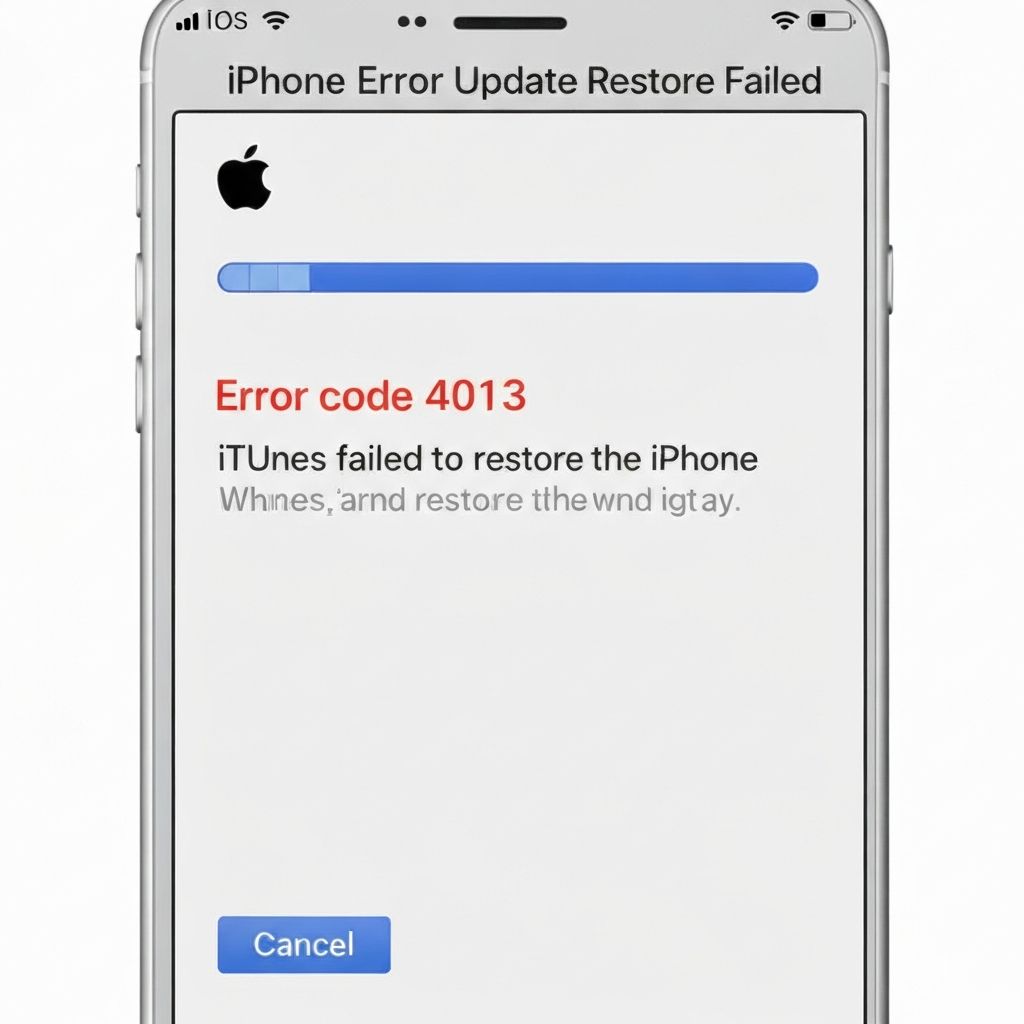
iPhone Error 4013 Update Restore
Fix iPhone error 4013 during iOS update or restore. USB connection issues, hardware problems, and iTunes errors preventing iPhone restoration.
What is iPhone Error 4013?
iPhone error 4013 occurs during iOS update or restore through iTunes/Finder, indicating a communication problem between your iPhone and computer. The error message states "The iPhone could not be restored. An unknown error occurred (4013)."
When does it occur?
This error appears when:
- Updating iOS through iTunes or Finder
- Restoring iPhone to factory settings
- During iOS recovery mode restore
- After interrupted firmware updates
- When iPhone disconnects during update
Common causes
- Faulty or damaged USB cable
- Loose connection during update process
- Outdated iTunes or macOS/Windows
- Hardware issues with iPhone (battery, chip)
- USB port not providing enough power
- Security software blocking iTunes communication
- Corrupted IPSW firmware file
Step-by-step fixes
- Use original Apple USB cable - Replace third-party cables with genuine Apple cable
- Try different USB port - Use USB port directly on computer, not hub
- Update iTunes/Finder - Ensure latest version of iTunes (Windows) or macOS
- Restart both devices - Restart iPhone and computer before retrying
- Check USB cable connection - Ensure cable is firmly connected and not damaged
- Try different computer - Test restore on another Mac or PC
- Put iPhone in DFU mode - Connect to computer, press and hold volume down + power button for 10 seconds, release power but keep holding volume down until iTunes detects iPhone in recovery
- Disable security software - Temporarily turn off antivirus and firewall
If it still doesn't work
If error persists after trying all software solutions, it may indicate hardware issues with the iPhone's logic board or battery. Contact Apple Support or visit an Apple Store for hardware diagnostics. Error 4013 can sometimes indicate a failing battery that cannot maintain power during the intensive update process.
Try using a powered USB hub or connect to a USB 3.0 port (blue port) for more stable power delivery. Some users report success by downloading the full IPSW file manually and option/shift-clicking Restore in iTunes to select the file directly.
Related errors
Resolve iPhone error 4013 caused by cable and iTunes issues. USB connectivity problems, cable damage, and port issues during iPhone sync or restore.