
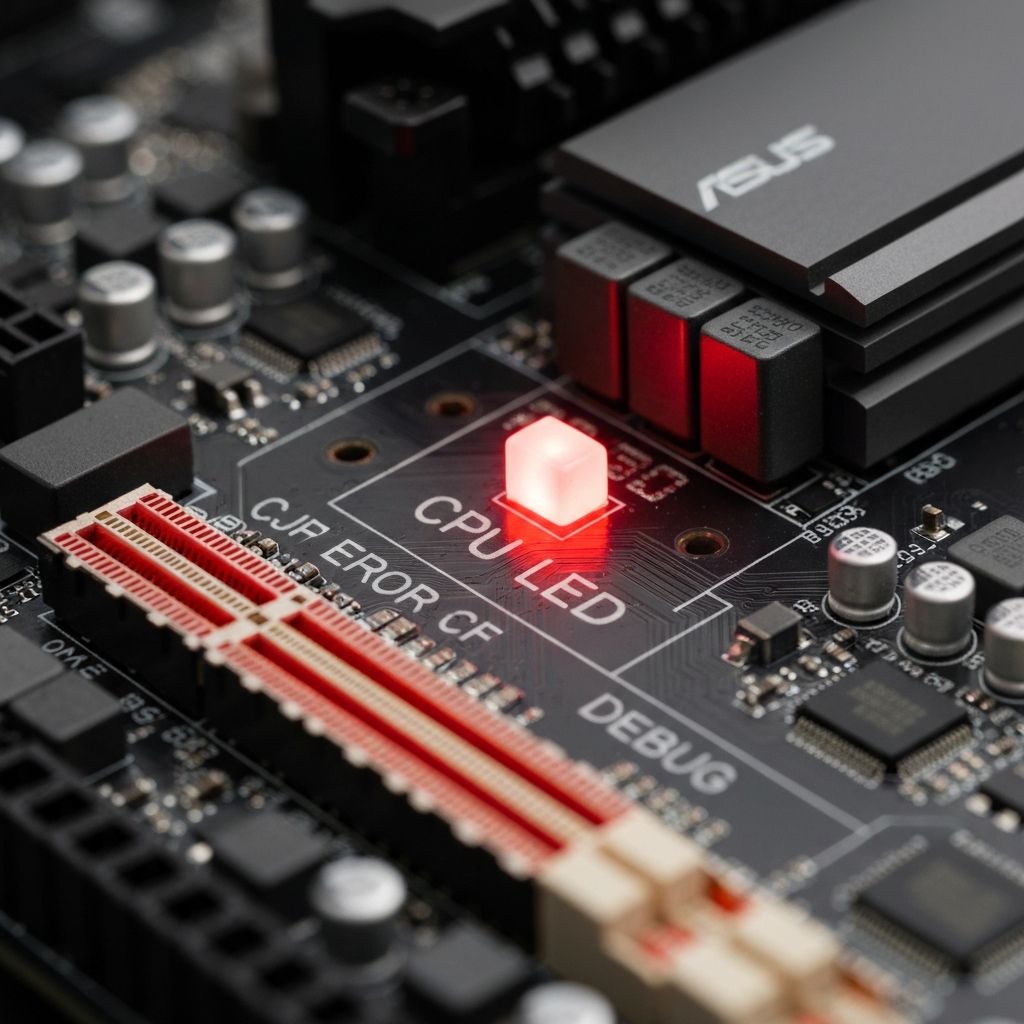
ASUS Motherboard Red CPU LED No Display
Fix ASUS motherboard red CPU LED with no display output. CPU detection failure, socket issues, and boot problems indicated by red CPU debug LED.
What is ASUS Red CPU LED?
The red CPU LED on ASUS motherboards indicates the motherboard has detected a CPU-related issue during POST (Power-On Self-Test). When this LED is lit and stays on, the computer won't display anything on the monitor.
When does it occur?
This LED lights up when:
- First building a new PC
- After installing a new CPU
- Following BIOS updates
- When CPU is improperly seated
- After moving or transporting PC
Common causes
- CPU not properly installed in socket
- Bent pins on CPU or motherboard socket
- Incompatible CPU for motherboard
- Outdated BIOS not supporting CPU
- Faulty CPU or motherboard
- Insufficient or improperly connected power
- CPU power cable (4/8-pin) not connected
Step-by-step fixes
- Check CPU power connection - Ensure 4-pin or 8-pin CPU power cable is firmly connected to motherboard
- Reseat the CPU - Power off, remove CPU cooler, lift retention arm, remove and reinstall CPU carefully
- Inspect for bent pins - Check CPU socket (AMD) or CPU bottom (Intel) for bent pins
- Clear CMOS - Remove CMOS battery for 5 minutes or use CLRTC jumper to reset BIOS
- Check CPU compatibility - Verify your CPU is supported by your motherboard model and BIOS version
- Update BIOS - If possible, update BIOS using BIOS Flashback feature (button on I/O panel) without CPU installed
- Test with minimal hardware - Remove all components except CPU, one RAM stick, and power supply
- Check PSU connections - Ensure PSU is adequate wattage and all power cables are secure
If it still doesn't work
If the red CPU LED persists after reseating and you've verified compatibility, either the CPU or motherboard may be faulty. Test the CPU in another compatible motherboard if available, or test with a different CPU in your motherboard to isolate the defective component.
For Ryzen CPUs on AMD boards, ensure you have the correct BIOS version installed. Newer Ryzen 5000/7000 series CPUs may require BIOS updates on older motherboards. Use BIOS Flashback or BIOS flash button with a USB drive containing the latest BIOS file.
Related errors
Troubleshoot MSI motherboard orange DRAM LED preventing boot. RAM detection failure, memory slot issues, and boot failure indicated by orange debug LED.
Resolve Gigabyte motherboard white VGA LED with no display signal. GPU detection failure, graphics card issues, and monitor no signal errors.