
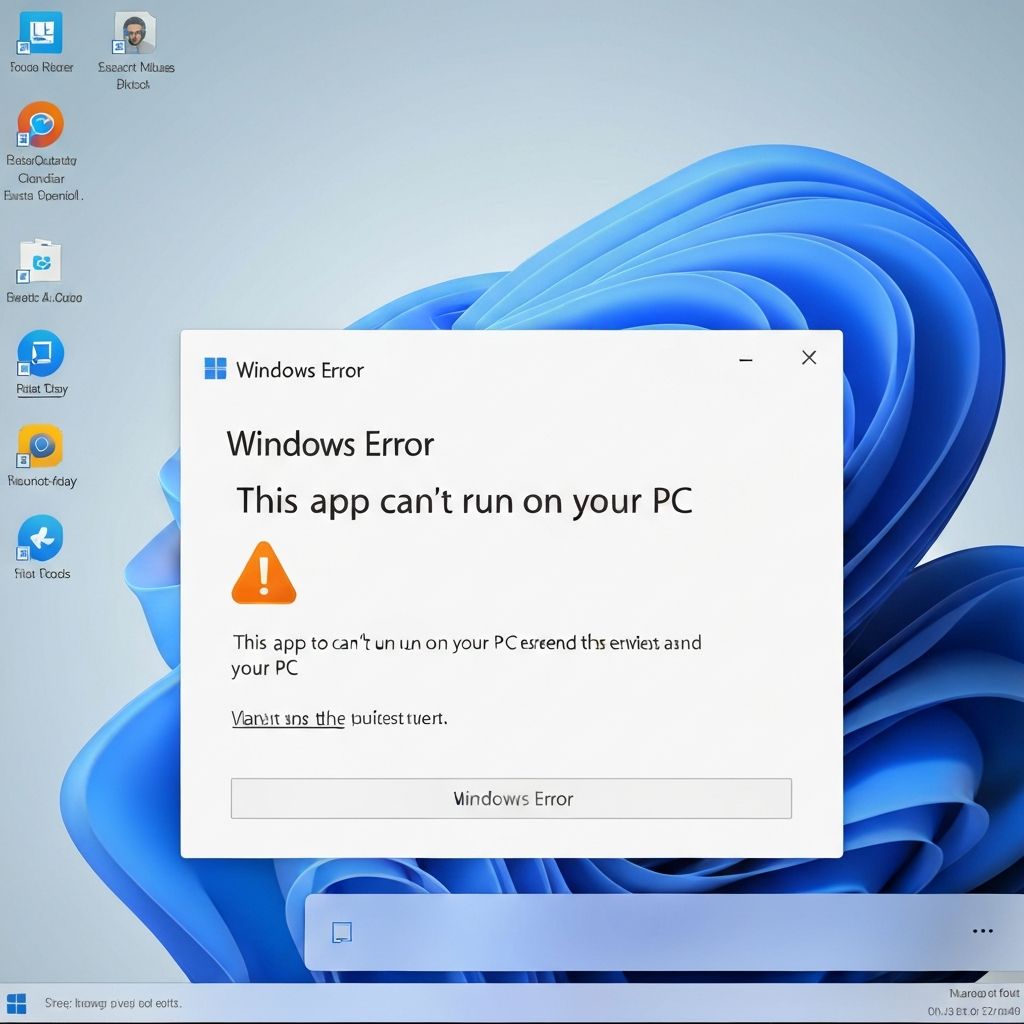
Windows This App Can't Run on Your PC
Fix 'This app can't run on your PC' error on Windows. Architecture mismatch, compatibility issues, and missing dependencies preventing application launch.
What is 'This app can't run on your PC'?
This error message appears when you try to run an application that's incompatible with your Windows architecture or version. The full message reads "This app can't run on your PC. To find a version for your PC, check with the software publisher."
When does it occur?
This error appears when:
- Running 64-bit apps on 32-bit Windows
- Trying to use ARM apps on x86/x64 systems
- Installing incompatible Windows version-specific software
- Running corrupted or incomplete executables
- Using apps designed for older Windows versions
Common causes
- Architecture mismatch (32-bit vs 64-bit)
- Downloaded wrong version of software
- Corrupted download or installation file
- Windows version incompatibility
- Missing Visual C++ Redistributables
- ARM vs x86 processor incompatibility
Step-by-step fixes
- Check Windows architecture - Settings > System > About > Check "System type"
- Download correct version - Get 64-bit app for 64-bit Windows or 32-bit for 32-bit Windows
- Run compatibility troubleshooter - Right-click app > Properties > Compatibility > Run compatibility troubleshooter
- Try compatibility mode - Properties > Compatibility > Check "Run this program in compatibility mode for" > Select Windows version
- Run as administrator - Right-click exe > Run as administrator
- Install Visual C++ Redistributables - Download from Microsoft website (both x86 and x64 versions)
- Re-download application - Original file may be corrupted, download again from official source
- Check Windows version - Ensure your Windows version meets minimum requirements
If it still doesn't work
If you're running 32-bit Windows and need a 64-bit application, you'll need to upgrade to 64-bit Windows (requires clean installation). Check if your processor supports 64-bit by looking up your CPU model specifications.
For very old applications, try running in Windows XP or Windows 7 compatibility mode. Some legacy software may also require enabling .NET Framework 3.5 through Windows Features (Control Panel > Programs > Turn Windows features on or off).
Related errors
Fix Windows 11 BSOD memory management error. RAM issues, driver conflicts, and memory corruption causing blue screen crashes with MEMORY_MANAGEMENT stop code.