
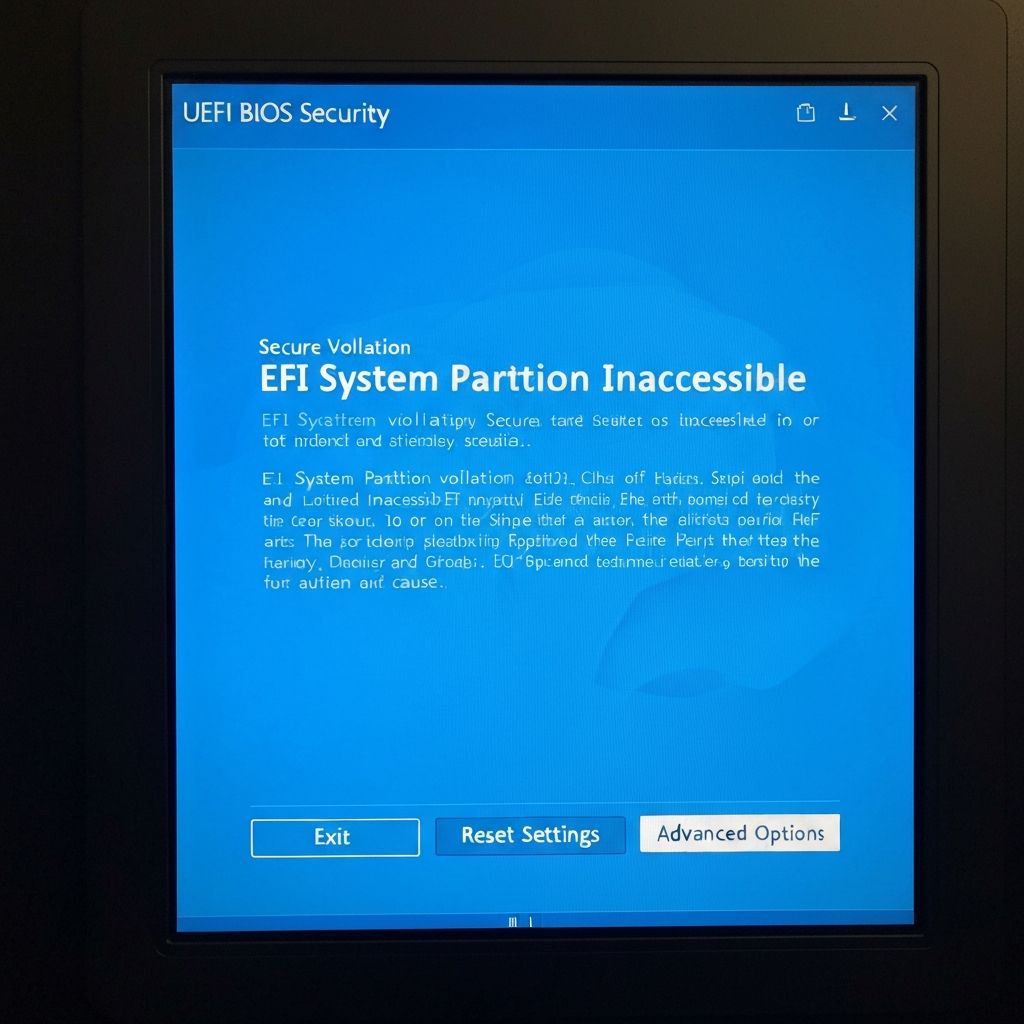
Fix Windows 11 Secure Boot Violation Error Cannot Boot 2025
Resolve Windows 11 Secure Boot violation preventing boot. Fix UEFI firmware errors, certificate problems, and boot security violations causing Secure Boot errors in Windows 11 2025.
What is Windows 11 Secure Boot Violation?
Windows 11 Secure Boot violation error occurs when UEFI firmware detects unauthorized or unsigned boot files attempting to load during system startup. The error displays "Security Violation: The system found an unauthorized change on the firmware, operating system or UEFI drivers" preventing Windows from booting, typically after hardware changes or BIOS updates.
Understanding Secure Boot
Secure Boot is UEFI security feature:
- Verifies digital signatures of boot loaders and drivers
- Prevents malware from loading before Windows starts
- Required for Windows 11 installation
- Uses Microsoft certificates to validate boot files
- Blocks unsigned third-party bootloaders
Violation indicates signature mismatch or corrupted boot files.
Common causes
- Corrupted Windows boot files after failed updates
- BIOS/UEFI firmware update changed Secure Boot keys
- Dual-boot Linux installation modified EFI partition
- Hardware changes (new motherboard, drive) triggering validation
- Malware infection corrupting boot sector
- Third-party boot managers (rEFInd, GRUB) without signing
- Disabled Secure Boot then re-enabled without proper setup
Step-by-step fixes
- Access BIOS/UEFI - Press F2/Del/F12 during boot
- Temporarily disable Secure Boot - Security > Secure Boot > Disabled
- Boot into Windows normally - Test if system starts
- Reset Secure Boot keys - Restore factory default keys in BIOS
- Boot from Windows installation media - Use USB/DVD recovery
- Run Startup Repair - Troubleshoot > Advanced options > Startup Repair
- Rebuild BCD - bootrec /fixmbr && bootrec /fixboot && bootrec/rebuildbcd
- Re-enable Secure Boot after fixing - Return to BIOS and enable
Resetting Secure Boot keys
BIOS key management to fix violations:
- Enter BIOS/UEFI setup
- Navigate to Security > Secure Boot
- Find "Restore Factory Keys" or "Reset to Setup Mode"
- Select option to load default Microsoft certificates
- Save changes and exit BIOS
- System should boot normally with default keys restored
Different manufacturers label this option differently (HP: "Clear All Secure Boot Keys", Dell: "Restore Factory Settings").
Using Windows Recovery Environment
From Windows installation media:
- Boot from USB/DVD with Windows 11 installer
- Click "Repair your computer" instead of Install
- Troubleshoot > Advanced options > Command Prompt
- Run: bootrec /fixmbr
- Run: bootrec /fixboot
- Run: bootrec /rebuildbcd
- Run: bcdboot c:\\windows /s c: /f UEFI
- Restart and check if Secure Boot violation resolved
Dual-boot Linux issues
If Linux installation caused violation:
- Linux bootloaders (GRUB, rEFInd) aren't signed by Microsoft
- Either disable Secure Boot permanently for dual-boot
- Or use signed Linux bootloader (PreLoader, shim)
- Ubuntu 20.04+ includes signed shim for Secure Boot compatibility
- Fedora and other distros also support Secure Boot with proper installation
Recommended: Keep Secure Boot enabled, reinstall Linux with Secure Boot support enabled during installation.
Hardware change violations
After motherboard or storage replacement:
- New motherboard has different Secure Boot keys
- Windows boot files don't match new firmware certificates
- Disable Secure Boot, boot Windows, re-enable Secure Boot
- System should re-validate boot files with new keys
- If still fails, perform Windows 11 repair installation
BIOS update causing violations
After firmware update:
- BIOS updates sometimes reset Secure Boot settings
- Secure Boot keys may be cleared during BIOS flash
- Enter BIOS and manually re-enable Secure Boot
- Load default keys from "Key Management" section
- Some motherboards require Platform Key (PK) enrollment
Advanced troubleshooting
For persistent Secure Boot violations:
- Check BIOS for "Custom" vs "Standard" Secure Boot mode
- Standard mode uses Microsoft keys only (recommended)
- Custom mode requires manual key management (advanced users)
- Verify CSM (Compatibility Support Module) is DISABLED
- Ensure boot mode is "UEFI only" not "Legacy" or "Both"
- Update motherboard BIOS to latest version if available
Malware-related violations
If malware infected boot sector:
- Boot from Windows installation media
- Command Prompt: bootrec /fixmbr (overwrites infected MBR)
- Run offline Windows Defender scan from recovery
- After cleaning, rebuild BCD completely
- Enable Secure Boot - will prevent future bootkit malware
Creating Secure Boot compatible USB
For clean Windows 11 installation:
- Download Windows 11 ISO from Microsoft
- Use Rufus to create bootable USB
- Partition scheme: GPT
- Target system: UEFI (non CSM)
- File system: FAT32
- This creates Secure Boot compatible installer
Prevention tips
Avoid future Secure Boot violations:
- Keep Windows fully updated with latest patches
- Don't modify EFI partition manually unless expert
- Update BIOS only when necessary from manufacturer
- If dual-booting, use distros with Secure Boot support
- Create system restore points before major changes
- Keep Secure Boot enabled for security benefits
\\\`
Related errors
Resolve Windows 11 infinite boot loop after factory reset. Fix automatic repair loop, startup repair cycle, and continuous restart problems preventing Windows 11 from booting after reset 2025.
Fix Windows BSOD kernel security check failure. Memory corruption, driver conflicts, and system file errors causing critical security check crashes.