
Windows 11 KB5074109 Nvidia Gaming Artifacts and Black Screen
Fix Windows 11 KB5074109 causing Nvidia gaming artifacts, black screens, and FPS drops in Forza Horizon and other games after January 2026 update.
What is the KB5074109 Nvidia Gaming Issue?
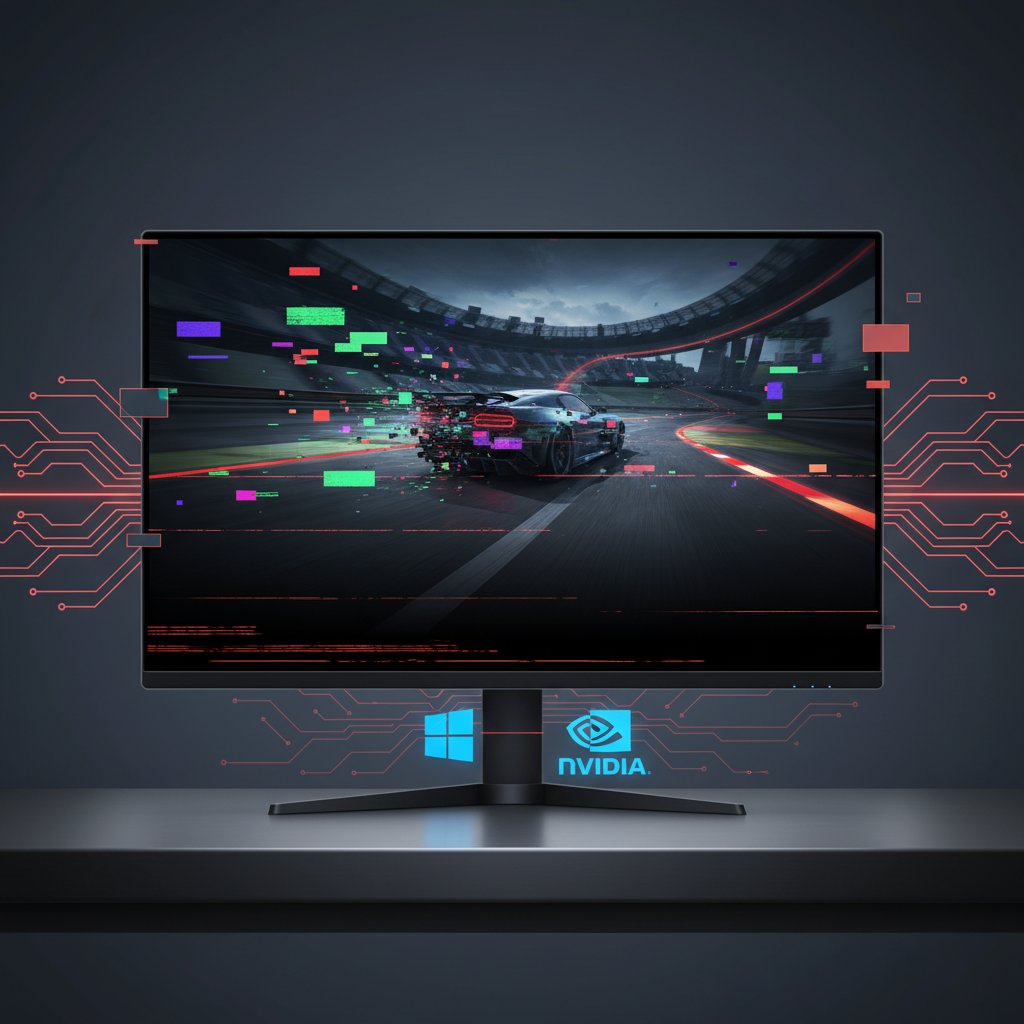
The Windows 11 KB5074109 update (January 2026 cumulative update) is causing widespread gaming problems specifically affecting Nvidia GPU users. After installing this update, players experience visual artifacts, rectangular glitches, black screens during gameplay, and significant FPS drops ranging from 10-30% in affected games.
Nvidia has confirmed they are investigating these issues. An Nvidia engineer has stated that uninstalling KB5074109 appears to be the only current workaround.
When does it occur?
- During gameplay in DirectX 11 and DirectX 12 games
- Specifically reported in Forza Horizon 5, Forza Motorsport, and other modern titles
- After the system resumes from sleep during a gaming session
- When switching between fullscreen and windowed modes
- During GPU-intensive scenes with volumetric effects or shadows
- More frequently on RTX 30-series and RTX 40-series cards
Common causes
- KB5074109 conflicts with Nvidia display drivers
- Windows graphics stack changes affecting DirectX rendering
- Incompatible interaction between WDDM driver model updates and Nvidia kernel drivers
- Hardware scheduling conflicts introduced in the cumulative update
- Corrupted shader cache after the Windows update
- Memory management changes affecting VRAM allocation
- DWM (Desktop Window Manager) conflicts with fullscreen exclusive mode
Step-by-step fixes
- Uninstall KB5074109 - Open Settings > Windows Update > Update history > Uninstall updates. Find KB5074109, click Uninstall, and restart. This is Nvidia's recommended fix.
- Pause Windows Updates - After uninstalling, go to Settings > Windows Update > Pause updates for 5 weeks. This prevents automatic reinstallation until Microsoft releases a fix.
- Roll back Nvidia drivers - Open Device Manager > Display adapters > right-click your Nvidia GPU > Properties > Driver tab > Roll Back Driver. Select a driver version from before January 2026.
- Clean install older Nvidia driver - Download driver version 566.36 or earlier from Nvidia's driver archive. Use DDU (Display Driver Uninstaller) in Safe Mode to completely remove current drivers, then install the older version.
- Disable Hardware-Accelerated GPU Scheduling - Open Settings > System > Display > Graphics > Change default graphics settings > turn off Hardware-accelerated GPU scheduling. Restart your PC.
- Clear DirectX shader cache - Open Settings > System > Storage > Temporary files > check DirectX Shader Cache > Remove files. Also delete contents of
%LOCALAPPDATA%\NVIDIA\DXCache.
- Restore from system restore point - If you have a restore point from before January 13, 2026, open System Restore and revert to that point. This removes the update and associated driver changes.
- Use Windows Update troubleshooter to hide the update - Download Microsoft's "Show or Hide Updates" troubleshooter (wushowhide.diagcab). Run it, select "Hide updates", and hide KB5074109 to prevent reinstallation.
If it still doesn't work
If artifacts and black screens persist after uninstalling KB5074109, the update may have corrupted your Nvidia driver installation beyond repair. Perform a complete driver reinstallation: boot into Safe Mode, run DDU to remove all Nvidia components, then install a fresh driver.
Monitor the Nvidia forums and Windows Latest for official updates. Microsoft typically releases hotfixes within 2-4 weeks for widespread issues like this. Consider joining the Windows Insider Release Preview channel to receive the fix earlier when available.
Related errors
Fix Windows 11 black screen on NVIDIA GPUs after installing KB5074109 January 2026 update. Resolve display driver conflicts and screen flicker issues.
Fix NVIDIA RTX 5090 and 5080 driver crashes with VIDEO_ENGINE_TIMEOUT_DETECTED error. Resolve black screens, game crashes, and DLSS instability on RTX 50 series GPUs.