
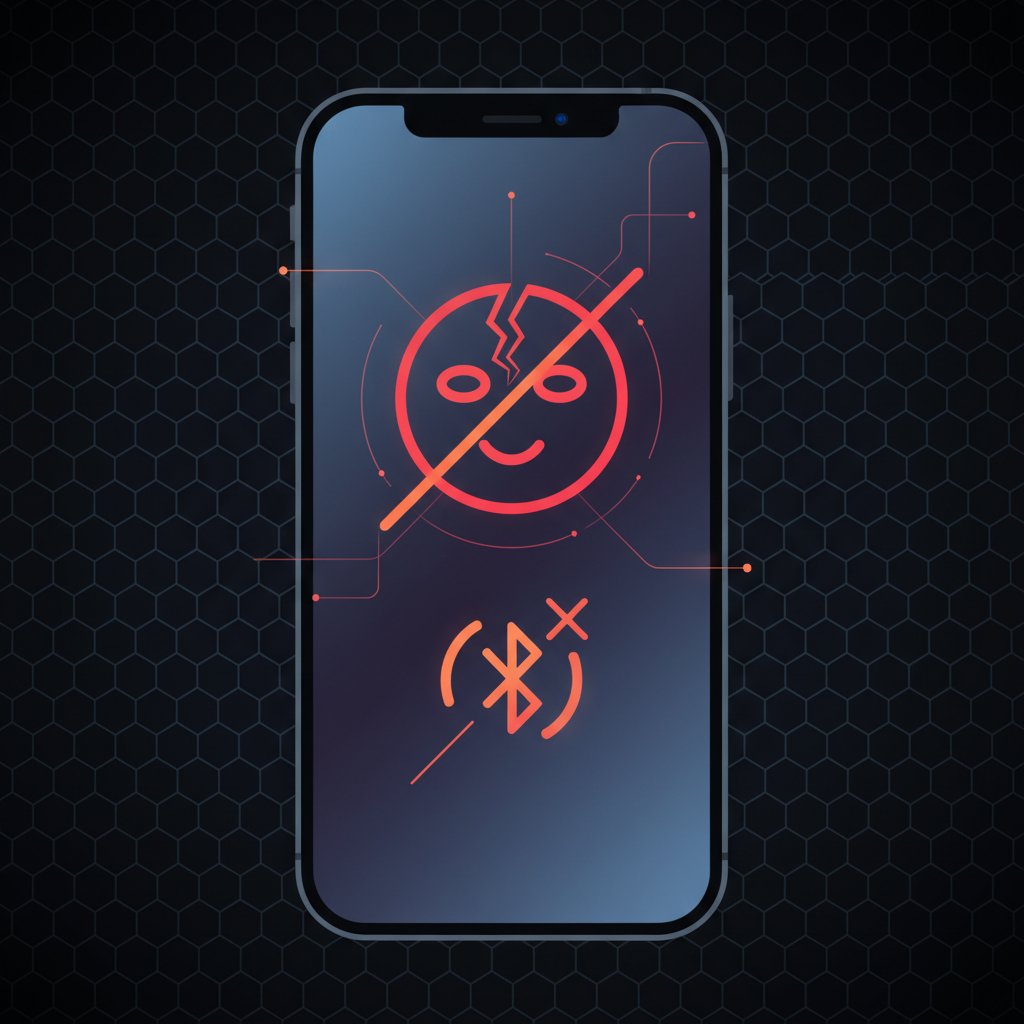
iOS 26.2.1 Face ID and Bluetooth Not Working After Update
Fix Face ID failures and Bluetooth disconnections after iOS 26.2.1 update. Reset biometrics, clear Bluetooth cache, and workarounds for affected iPhones.
What is the iOS 26.2.1 Face ID and Bluetooth bug?
After updating to iOS 26.2.1 (released January 26, 2026), many iPhone users report that Face ID becomes unreliable or stops working entirely, and Bluetooth devices randomly disconnect during use. Face ID may fail repeatedly even in ideal lighting, get disabled inside third-party apps, or appear greyed out in Settings. Bluetooth devices — particularly non-Apple headphones, car audio systems, and hearing aids — drop connections every few minutes.
These issues are separate from the crashes and battery drain also caused by iOS 26.2.1. Apple has not officially acknowledged the Face ID and Bluetooth regressions, and downgrading to iOS 26.2 is impossible since Apple stopped signing it on February 3, 2026.
When does it occur?
- Face ID fails repeatedly when unlocking the iPhone, even in the same position that worked before
- Face ID authentication gets disabled inside third-party banking and payment apps
- Bluetooth headphones or car audio disconnect and reconnect every 2-5 minutes
- Audio cuts out mid-call or mid-playback over Bluetooth
- Bluetooth hearing aids (Phonak, KS10) constantly reconnect on iPhone 16 Pro
- Face ID settings appear greyed out, preventing re-enrollment
Common causes
- iOS 26.2.1 introduced a regression in the TrueDepth camera framework affecting Face ID accuracy
- The iOS 26 Bluetooth stack sends connection parameter update commands at extremely high frequency (every 120ms), causing slave devices to disconnect
- Third-party Bluetooth devices are disproportionately affected — AirPods typically work normally
- Stolen Device Protection settings can conflict with Face ID re-enrollment after the update
- Screen protectors that slightly shifted during the update process may now block the IR projector
- Corrupted Bluetooth pairing data from the update prevents stable connections
- The update may have reset Face ID attention detection calibration
Step-by-step fixes
- Reset and re-enroll Face ID — Go to Settings > Face ID & Passcode, enter your passcode, and tap "Reset Face ID." Then tap "Set Up Face ID" and complete two slow, full-circle head scans in steady, even light with the phone 10-20 inches from your face. After setup, verify that iPhone Unlock, iTunes & App Store, and Wallet & Apple Pay toggles are enabled.
- Disable Require Attention for Face ID — Go to Settings > Face ID & Passcode and turn off "Require Attention for Face ID." Multiple users report this improves recognition reliability after the update. Note: this reduces security slightly, as your iPhone will unlock even if your eyes are closed.
- Toggle Stolen Device Protection — Go to Settings > Face ID & Passcode, scroll to Stolen Device Protection, toggle it off, wait 10 seconds, then toggle it back on. This has resolved Face ID issues for several users without requiring a full reset. A security delay may apply depending on your location.
- Forget and re-pair all Bluetooth devices — Go to Settings > Bluetooth, tap the "i" icon next to each problematic device, and select "Forget This Device." Turn Bluetooth off for 30 seconds, turn it back on, then re-pair each device. This clears corrupted pairing data from the update.
- Reset Network Settings — Go to Settings > General > Transfer or Reset iPhone > Reset > Reset Network Settings. Enter your passcode to confirm. This clears all Bluetooth pairing data, Wi-Fi passwords, and VPN configurations. You will need to re-pair all Bluetooth devices and re-enter Wi-Fi passwords, but this is the most effective fix for persistent Bluetooth drops.
- Force restart your iPhone — Press and quickly release Volume Up, press and quickly release Volume Down, then press and hold the Side button until the Apple logo appears. This clears temporary caches that may be causing Bluetooth or Face ID instability after the update.
- Clean the TrueDepth camera and check screen protector — Wipe the notch/Dynamic Island area with a microfiber cloth. If you have a screen protector, check that it hasn't shifted to partially cover the IR projector or flood illuminator. Several users resolved Face ID issues entirely by removing their screen protector.
- Disable VPN and enable Location Services — A VPN can interfere with Bluetooth functionality on iOS 26. Go to Settings > General > VPN & Device Management and disable any active VPN. Also ensure Location Services are enabled at Settings > Privacy & Security > Location Services.
If it still doesn't work
If Face ID remains greyed out or completely non-functional, try resetting all settings: Settings > General > Transfer or Reset iPhone > Reset > Reset All Settings. This reverts all system settings without deleting your data. If Bluetooth issues persist with specific devices, check whether the manufacturer has released a firmware update for compatibility with iOS 26 — the root cause is iOS sending excessively frequent Bluetooth parameter updates that overwhelm some devices' Bluetooth stacks. Unfortunately, downgrading to iOS 26.2 is no longer possible. Apple is expected to release iOS 26.3 in the coming weeks, which should address these regressions. If Face ID remains completely unresponsive after all software troubleshooting, contact Apple Support or visit an Apple Store to rule out a hardware issue with the TrueDepth camera system.
Related errors
Fix iOS 26.2.1 crashes, battery drain, Bluetooth disconnects, and network failures on iPhone. Step-by-step solutions for all reported iOS 26.2.1 problems.
Fix the Unable to Check for Update error on iPhone when updating to iOS 26. Resolve server, network, and storage issues blocking your iOS update.