
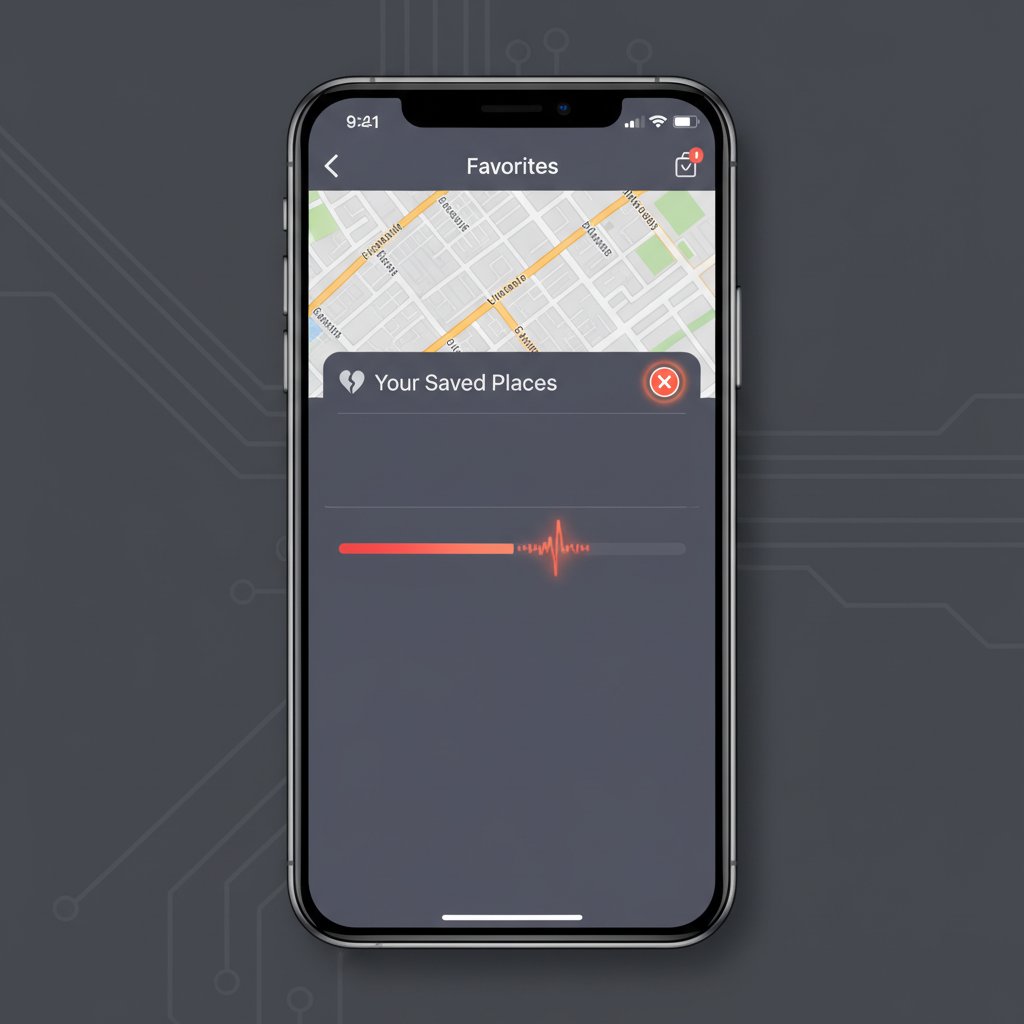
iOS 26.2.1 Apple Maps Lost Saved Locations and Data Recovery
Fix Apple Maps saved locations, favorites, and Guides disappearing after iOS 26.2.1 update. iCloud sync recovery, backup restore, and prevention checklist.
What is the iOS 26.2.1 Apple Maps lost locations bug?
After updating to iOS 26.2.1 (released early February 2026), many iPhone users report that Apple Maps has lost all their saved locations, favorites, and Guides. Home and Work pins may remain intact, but custom saved places, collections, and Guides vanish completely. This is a recurring iOS bug that has appeared across multiple major versions (iOS 13.3, iOS 16.0, iOS 16.4.1, iOS 16.5.1, and now iOS 26.2.1).
Newsweek, 9to5Mac, PhoneArena, and Macworld have all documented this issue alongside other iOS 26.2.1 bugs including battery drain, Face ID failures, and Bluetooth disconnections. Apple has not officially acknowledged the Maps data loss issue, and there is no native Apple Maps export feature — making recovery dependent on iCloud sync and device backups.
When does it occur?
- Immediately after updating to iOS 26.2.1 — saved places are gone upon opening Maps
- After a device restart following the iOS update
- Gradually — favorites disappear over hours or days after the update
- On devices with low available storage during the update process
- When iCloud Maps sync was not properly enabled before the update
- On iPhones with Advanced Data Protection enabled (encryption re-sync delay)
Common causes
- iCloud Maps sync disruption — the iOS update interrupts the sync process, causing Maps to display an empty local cache
- Database migration failure — major iOS updates restructure app databases; Maps data migration can silently fail
- Insufficient storage — devices with less than 2-3 GB free space during the update may fail to complete data migration
- iCloud Drive disabled — Guides and saved places require iCloud Drive to be active for cloud sync
- Offline Maps mode — having Maps set to "only use downloaded maps" can prevent favorites from syncing back
- Wi-Fi interruption during update — an unstable connection during the iOS update can leave Maps data in a partially synced state
Step-by-step fixes
- Toggle iCloud Maps sync off and on — Go to Settings > tap your name (Apple ID) > iCloud > Show All > Maps > toggle OFF > wait 60 seconds > toggle ON > wait 2-3 minutes without opening Maps > then open Maps. This is the most commonly successful fix and forces a re-sync from iCloud.
- Verify iCloud Drive is enabled — Go to Settings > Apple ID > iCloud > ensure iCloud Drive is toggled ON. Guides and saved places require iCloud Drive. Some users found their data returned immediately after enabling this.
- Check Location Services — Go to Settings > Privacy & Security > Location Services > ensure it's ON > scroll to Maps > select "While Using the App". Also enable Settings > Privacy & Security > Location Services > System Services > Routing & Traffic.
- Disable offline-only Maps mode — Open Maps > tap your profile icon > Offline Maps. If "Only Use Offline Maps" is enabled, turn it off. This setting prevents the app from syncing saved locations from iCloud.
- Force restart your iPhone — Press and quickly release Volume Up, press and quickly release Volume Down, then press and hold the Side button until the Apple logo appears. This clears the Maps cache and forces a fresh iCloud sync on next launch.
- Free up device storage — Go to Settings > General > iPhone Storage. If your device is nearly full, delete unused apps, old photos, or cached data. At least one confirmed case showed Maps data reappearing immediately after freeing storage space.
- Verify cellular data access for Maps — Go to Settings > Cellular > scroll to Maps > ensure it has permission for WLAN & Cellular Data. Maps cannot sync without network access.
- Restore from iCloud Backup (last resort) — If no other fix works: verify a backup exists at Settings > Apple ID > iCloud > iCloud Backup (the date must predate your data loss). Back up your current phone to a computer first. Then go to Settings > General > Transfer or Reset iPhone > Erase All Content and Settings > during setup, choose "Restore from iCloud Backup" and select the pre-update backup.
If it still doesn't work
If your Maps data was never synced to iCloud before it disappeared, it may be unrecoverable — Apple provides no export feature for saved locations. If you have a Mac with Time Machine, you can attempt to restore the com.Apple.maps data from a backup made before the iOS update. For future protection: before every iOS update, take screenshots of all saved places (Maps > profile > Library > Places), verify iCloud Maps sync is active, create both an iCloud and a local computer backup, and wait 48-72 hours after a new iOS release to monitor bug reports before updating. Report the issue to Apple via Settings > General > About > send feedback, or post on the [Apple Support Community](https://discussions.apple.com/community/iphone/maps-and-navigation) to help prioritize a fix.
Related errors
Fix iOS 26.2.1 crashes, battery drain, Bluetooth disconnects, and network failures on iPhone. Step-by-step solutions for all reported iOS 26.2.1 problems.
Fix Face ID failures and Bluetooth disconnections after iOS 26.2.1 update. Reset biometrics, clear Bluetooth cache, and workarounds for affected iPhones.
Fix Safari crashing and Apple Music stopping on iOS 26.2.1. Clear cache, reset iCloud sync, re-authorize Apple Music, and restore stable playback on iPhone.