
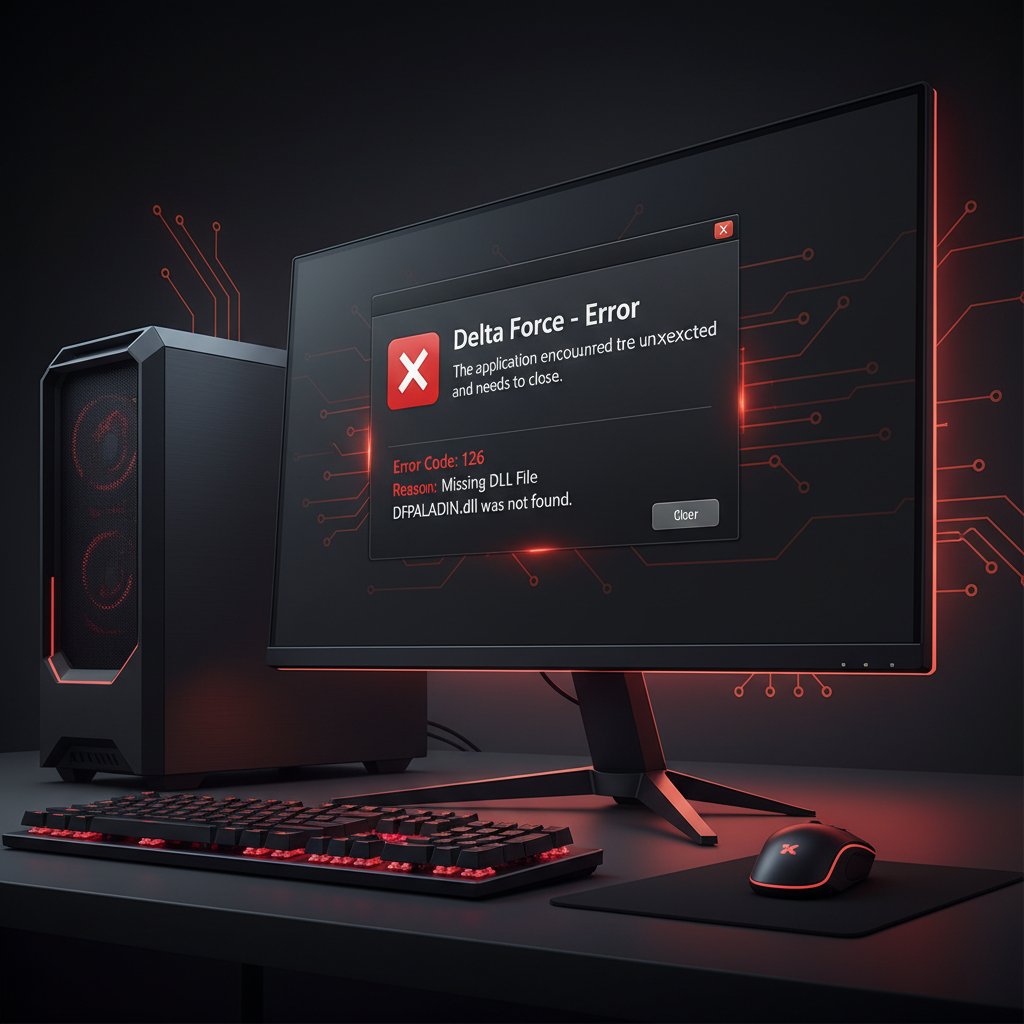
Delta Force Error Code 126 tdatamaster.dll Missing
Fix Delta Force error code 126 caused by missing tdatamaster.dll file. Step-by-step solutions for DLL errors preventing the game from launching on Steam.
What is Delta Force Error Code 126?
Error code 126 in Delta Force appears when the game cannot locate the tdatamaster.dll file during launch. This DLL is a critical component that contains shared data and code required by the game executable. Without it, the game fails to start and displays a system error dialog referencing the missing file.
This error is common on fresh installations and after game updates that may have corrupted or failed to extract required runtime files. It affects both the Steam and standalone launcher versions of Delta Force.
When does it occur?
- Launching Delta Force for the first time after installation
- After a game update that failed to complete properly
- When Microsoft Visual C++ Redistributables are missing or outdated
- After moving the game folder to a different drive without reinstalling
- When antivirus software quarantines the DLL file
- After a system restore or Windows update that removed runtime libraries
Common causes
- Missing or corrupted Microsoft Visual C++ Redistributable packages
- Incomplete game installation or failed update on Steam
- Antivirus software (Windows Defender, Norton, Bitdefender) flagging
tdatamaster.dllas a false positive - Corrupted game files in the Steam library
- Missing Unreal Engine 4 prerequisites that ship with the game
- File system permissions blocking access to the game directory
- Damaged Windows system files affecting DLL loading
Step-by-step fixes
- Run the bundled UE4 prerequisites installer — Navigate to
C:\Program Files (x86)\Steam\steamapps\common\Delta Force\Game\Engine\Extras\Redist\en-usand runUE4PrereqSetup_x64.exe. This installs all required runtime dependencies including the missing DLL. Restart your PC after installation.
- Verify integrity of game files on Steam — Open Steam Library, right-click Delta Force, select Properties > Installed Files > Verify integrity of game files. Steam will scan and re-download any missing or corrupted files including
tdatamaster.dll.
- Install Microsoft Visual C++ Redistributables — Download and install both the x64 and x86 versions of the latest Visual C++ Redistributable from Microsoft's official site. Install the 2015-2022 package and restart your PC.
- Check your antivirus exclusions — Open Windows Security > Virus & threat protection > Manage settings > Exclusions > Add an exclusion. Add the entire Delta Force game folder path. If using third-party antivirus, add the same exclusion there and check the quarantine for
tdatamaster.dll.
- Repair the Steam library folder — Go to Steam > Settings > Storage, select the drive where Delta Force is installed, click the three-dot menu, and select Repair Library. This fixes permission issues and corrupted library metadata.
- Run SFC and DISM scans — Open Command Prompt as administrator and run
sfc /scannowfollowed byDISM /Online /Cleanup-Image /RestoreHealth. These commands repair corrupted Windows system files that may prevent DLLs from loading correctly.
- Clean reinstall Delta Force — Uninstall the game through Steam, then manually delete the remaining folder at
Steam\steamapps\common\Delta Force. Reinstall the game on a single drive to avoid path issues.
- Disable overlay applications — Close MSI Afterburner, RivaTuner Statistics Server, Discord overlay, and GeForce Experience overlay before launching. These tools can interfere with DLL loading during game startup.
If it still doesn't work
If none of the above fixes resolve error code 126, the issue may be deeper in your Windows installation. Try creating a new Windows user account and launching the game from there, as corrupted user profiles can affect DLL search paths. You can also check the Windows Event Viewer under Windows Logs > Application for detailed error messages that pinpoint which dependency is failing. As a last resort, report the issue on the official Delta Force Steam Community forums with your system specs, Windows version, and the full error message text.
Related errors
Resolve Steam error code E87 connection failed during downloads and updates. Fix network timeouts, CDN issues, and download server problems preventing Steam game installations in 2025.
Fix ARC Raiders Unhandled Exception EXCEPTION_ACCESS_VIOLATION crash on PC. Resolve memory access errors, DX12 conflicts, and anti-cheat issues causing game crashes.