
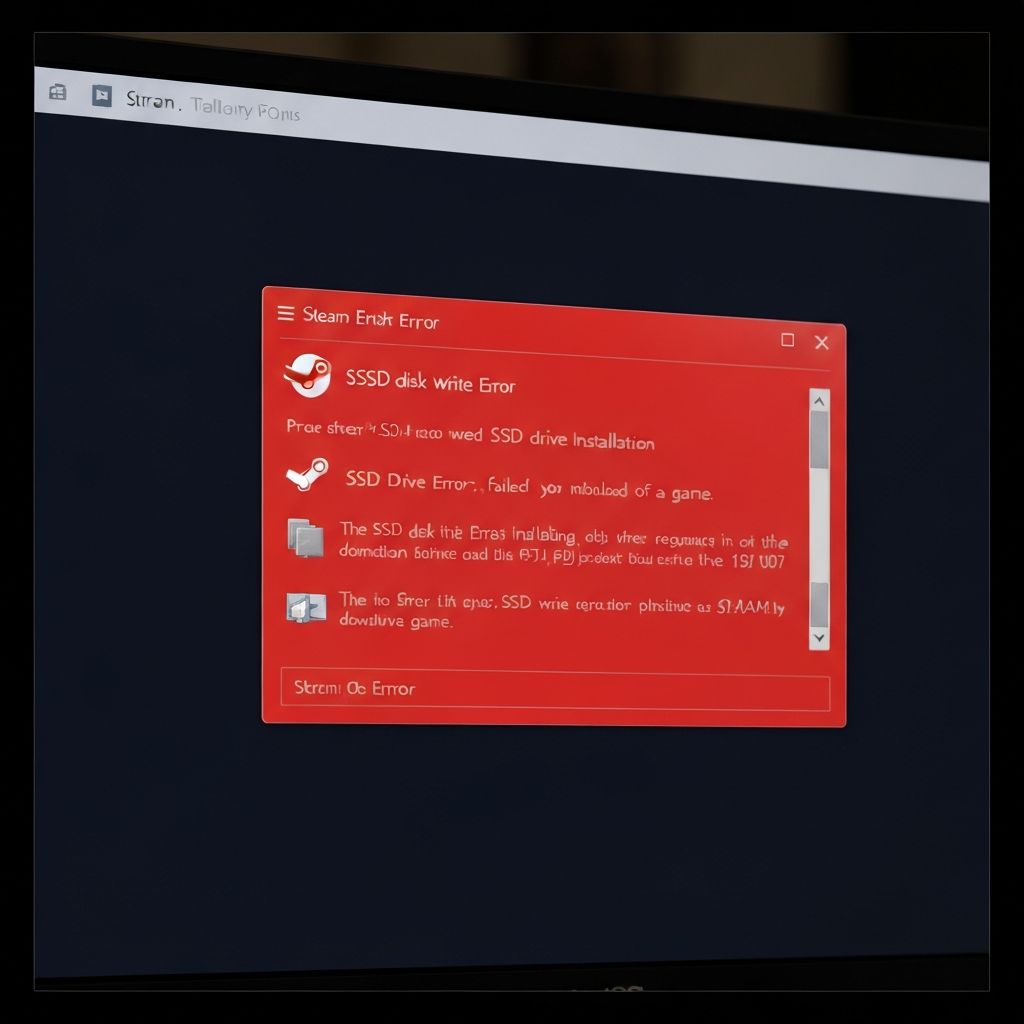
Steam Disk Write Error SSD
Fix Steam disk write error on SSD. Permission issues, drive errors, corrupted downloads preventing game installation or updates on solid state drives.
What is Steam Disk Write Error?
Steam disk write error occurs when the Steam client cannot write files to your SSD during game download, installation, or update. The error message states "An error occurred while updating [game name] (disk write error)."
When does it occur?
This error appears when:
- Downloading or updating games
- Installing new games from Steam library
- Verifying game file integrity
- Moving games between drives
- After Windows updates
Common causes
- Insufficient permissions on Steam folder
- SSD running out of space
- Corrupted download cache
- Antivirus blocking Steam writes
- SSD file system errors
- Write protection on drive
- Faulty SSD sectors
Step-by-step fixes
- Run Steam as administrator - Right-click Steam > Run as administrator
- Clear download cache - Steam > Settings > Downloads > Clear Download Cache
- Verify folder permissions - Right-click Steam folder > Properties > Security > Edit > Give Full Control to your user
- Check SSD space - Ensure at least 20GB free space on the drive
- Disable Windows Real-time Protection - Temporarily turn off to test if antivirus is blocking
- Repair Steam library folder - Steam > Settings > Downloads > Steam Library Folders > Right-click > Repair Folder
- Check disk for errors - Open CMD as admin > Type "chkdsk C: /f /r" (replace C: with your drive)
- Disable read-only attribute - Right-click Steam folder > Properties > Uncheck Read-only > Apply to all subfolders
If it still doesn't work
If the error persists on a specific game, try deleting the game's download folder manually (Steam\steamapps\downloading) and restart the download. Run a SMART test on your SSD using CrystalDiskInfo to check for drive health issues.
Consider moving your Steam library to a different drive temporarily to isolate whether it's an SSD-specific problem. If the same error occurs on multiple drives, reinstall Steam completely while preserving your game files by keeping the steamapps folder.