
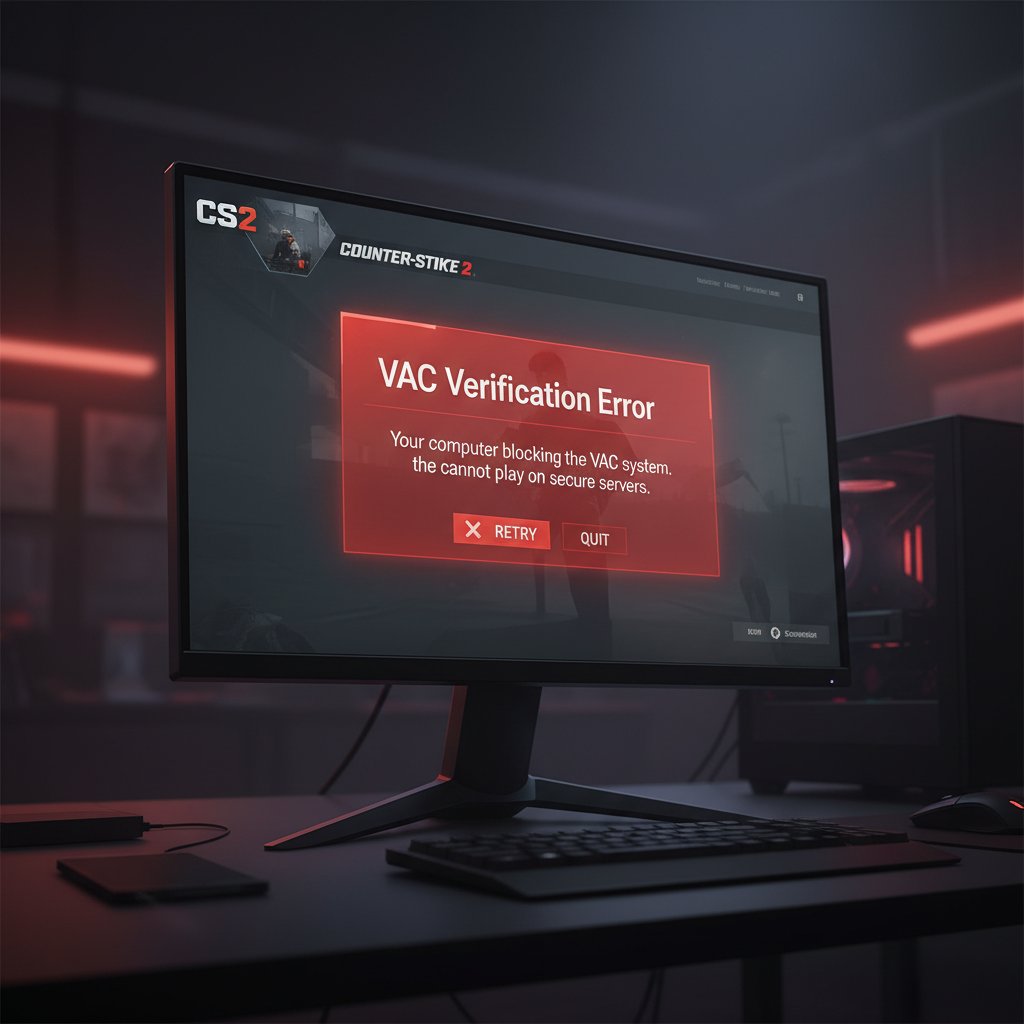
CS2 VAC Was Unable to Verify Your Game Session
Fix the VAC was unable to verify your game session error in CS2. Resolve Steam verification failures, overlay conflicts, and anti-cheat issues in Counter-Strike 2.
What is the "VAC Was Unable to Verify Your Game Session" error?
This error appears when Valve Anti-Cheat (VAC) cannot validate your CS2 game files or Steam client before connecting to a secured server. You are blocked from joining any VAC-protected competitive or casual match until the issue is resolved.
The error is not a VAC ban — it is a temporary verification failure. It affects all CS2 players on Windows and can appear suddenly even if nothing has changed on your system.
When does it occur?
- When launching a competitive or casual match in CS2
- After a Steam client or CS2 update
- When third-party overlays interfere with the game process
- After a Windows update modifies system security policies
- When game files become corrupted or incomplete
- After switching between beta and stable Steam branches
Common causes
- Corrupted or modified CS2 game files
- Steam client service errors or outdated Steam version
- Discord Overlay, GeForce Experience, or MSI Afterburner injecting into the game process
- Windows Data Execution Prevention (DEP) policy blocking VAC
- Background antivirus software quarantining VAC components
- Stale Steam authentication tokens or cached session data
- Running Steam without administrator privileges
Step-by-step fixes
- Restart Steam completely — Close Steam from the system tray (right-click the Steam icon > Exit Steam). Relaunch it and try joining a match again. A simple restart clears stale session tokens.
- Verify game file integrity — Open Steam > Library > right-click Counter-Strike 2 > Properties > Installed Files > click "Verify integrity of game files." Wait for the scan to complete and re-download any missing files.
- Repair the Steam client service — Open Command Prompt as Administrator and run:
"C:\Program Files (x86)\Steam\bin\SteamService.exe" /repair. Restart Steam after the repair finishes.
- Disable third-party overlays — Disable Discord Overlay (User Settings > Game Overlay > toggle off), GeForce Experience in-app overlay, MSI Afterburner, and Xbox Game Bar (Settings > Gaming > Xbox Game Bar > Off). Restart CS2 after disabling each one.
- Run Steam as Administrator — Right-click the Steam shortcut > Properties > Compatibility tab > check "Run this program as an administrator." Apply and relaunch Steam.
- Fix DEP settings via Command Prompt — Open Command Prompt as Administrator and run:
bcdedit.exe /set {current} nx OptIn. Reboot your PC. This ensures Data Execution Prevention does not block VAC.
- Clear Steam download cache — Go to Steam > Settings > Downloads > click "Clear Download Cache." Steam will restart and ask you to log in again.
- Reinstall CS2 as a last resort — Uninstall CS2 from Steam Library, delete any remaining files in
C:\Program Files (x86)\Steam\steamapps\common\Counter-Strike Global Offensive\, then reinstall the game fresh.
If it still doesn't work
If none of the steps above resolve the error, try playing a local match with bots for 5–10 minutes, then attempt to join an online server again — this has been reported to reset the VAC session state. You can also check the [Steam Status page](https://steamstat.us/) to see if VAC servers are experiencing downtime.
If the error persists for more than 24 hours, contact [Steam Support](https://help.steampowered.com/) and include your Steam ID and a screenshot of the error. In most cases, the error resolves itself after a Steam or CS2 update cycle.
Related errors
Enable TPM 2.0 and Secure Boot to fix Valorant error VAN 9001. BIOS settings for Windows 11 security requirements and Vanguard anti-cheat.
Solve Fortnite Easy Anti-Cheat error 30005 preventing game launch. Complete guide to fix EAC service failures, installation errors, and driver conflicts causing error 30005 in Fortnite 2025.
Resolve Steam error code E87 connection failed during downloads and updates. Fix network timeouts, CDN issues, and download server problems preventing Steam game installations in 2025.